Mask Preview
See what a mask really does. It turns a mask into a picture you can look at, like Photoshop's quick-mask overlay or the "show mask" view.
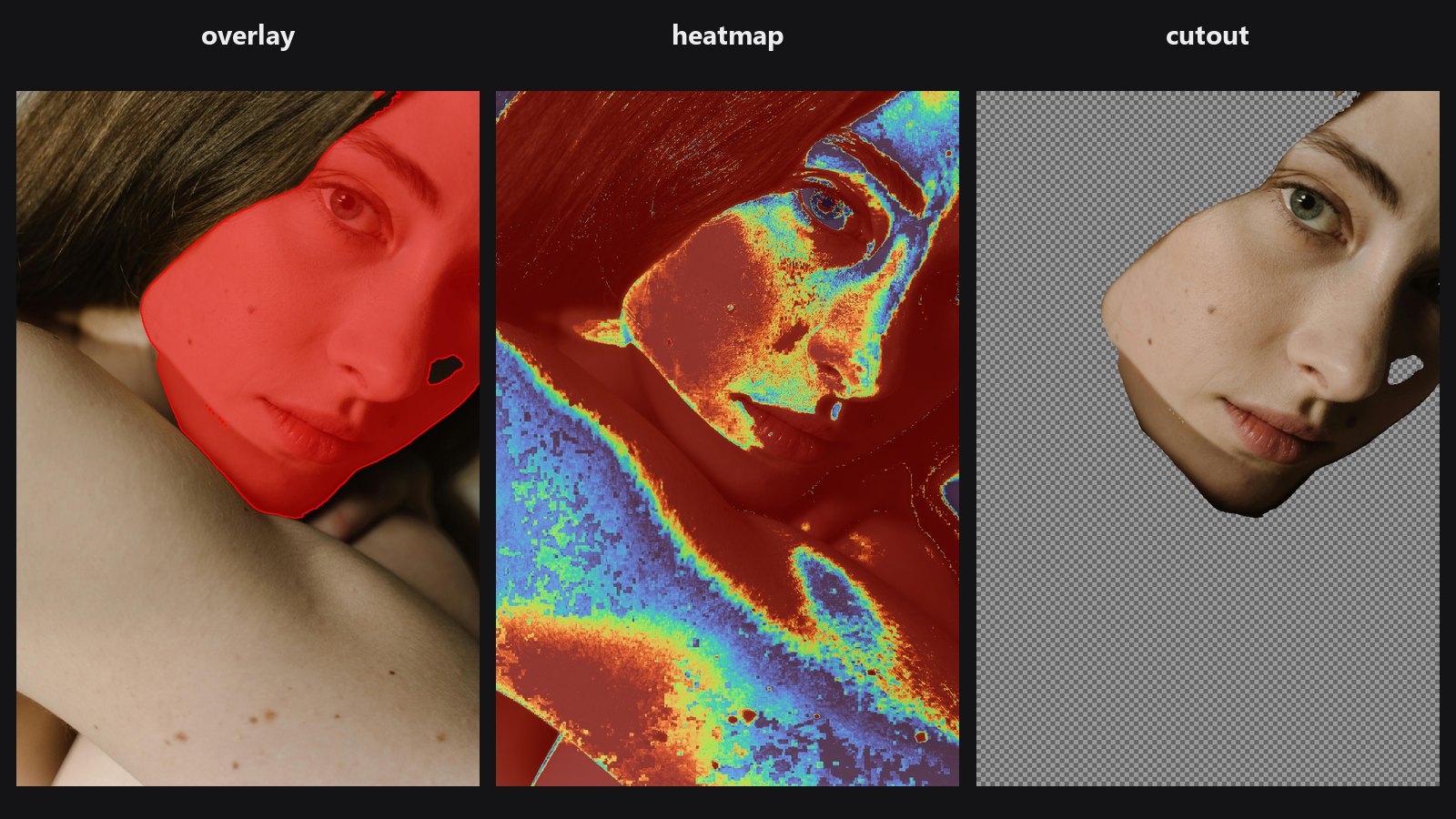
| In ComfyUI | Add Node → ComfyUI-JH-PixelPro → mask → Mask: Preview Overlay |
| Good for | Checking a mask's coverage, spotting holes and halos, judging soft edges, previewing a cutout on a checkerboard |
When to use it
A raw mask is a grey image that is hard to judge. Four views make it clear:
| Mode | What you see | Best for |
|---|---|---|
overlay |
Photo tinted with a colour where the mask is on | Checking coverage |
heatmap |
Mask values as a colour map (0 = cold, 1 = hot) | Finding soft or partial values |
mask_only |
The mask as grey-scale | The plain view |
cutout |
Photo shown only where the mask is on, over a checkerboard | Judging the cutout, like a transparent layer |
The preview is for looking only. Do not feed its output back as a mask. Connect it to a Preview Image node.
Quick start
- Connect the mask to
maskand your photo to the optionalimage. - Choose
overlaywithopacity0.5 andshow_edgeson. - Connect
previewto aPreview Imagenode. - Switch to
cutoutto see how it would look on a transparent background.
Settings
| Setting | Default | What it does | Tip |
|---|---|---|---|
mode |
overlay |
Which of the four views to draw. | See the table above. |
color |
red |
Tint colour for overlay, and the colour of the edge line. |
Pick a colour that contrasts with the photo. Eight colours are available, from red to white and black. |
opacity |
0.5 | Strength of the tint (overlay) or the heatmap blend. |
0 to 1. |
colormap |
turbo |
The colour scale used by heatmap. |
Names come from Kornia's colormap list, such as turbo, viridis, jet. |
show_edges |
off | Draws the 0.5 contour of the mask as a thin line in color. |
Handy for judging how tight the edge is. |
image (optional) |
none | The background photo. Without it you get a neutral grey background (a bare colour map in heatmap mode). |
A 4-channel image is accepted; the alpha channel is ignored. |
Output: preview (IMAGE).
Tips from retouching
- Use
heatmapon a feathered mask to see exactly how wide the soft band is. - Use
cutoutwith a contrasting checkerboard to find halos that a flat background would hide. - Use
show_edgesinoverlaymode to compare two masks. Run the node twice with different colours. - The image and the mask must have the same width and height.
Under the hood
overlay mixes the photo toward the colour by opacity * mask. heatmap uses kornia.color.apply_colormap with the chosen colormap and blends it with the photo by opacity. cutout mixes the photo and an 8 px checkerboard by the mask. The edge line is a one-pixel band, built from dilation minus erosion of the mask thresholded at 0.5. Source: core/mask_preview.py.
Related nodes
- Mask Cleanup for fixing what the preview shows
- Alpha Matte for soft cutouts to view in
cutoutmode - Trimap Builder, whose three zones show clearly in
heatmap - QA Image Diff for comparing two images instead
Example workflow
Mask Preview example workflow. Copy workflows/sample_portrait.jpg into ComfyUI/input/ first.