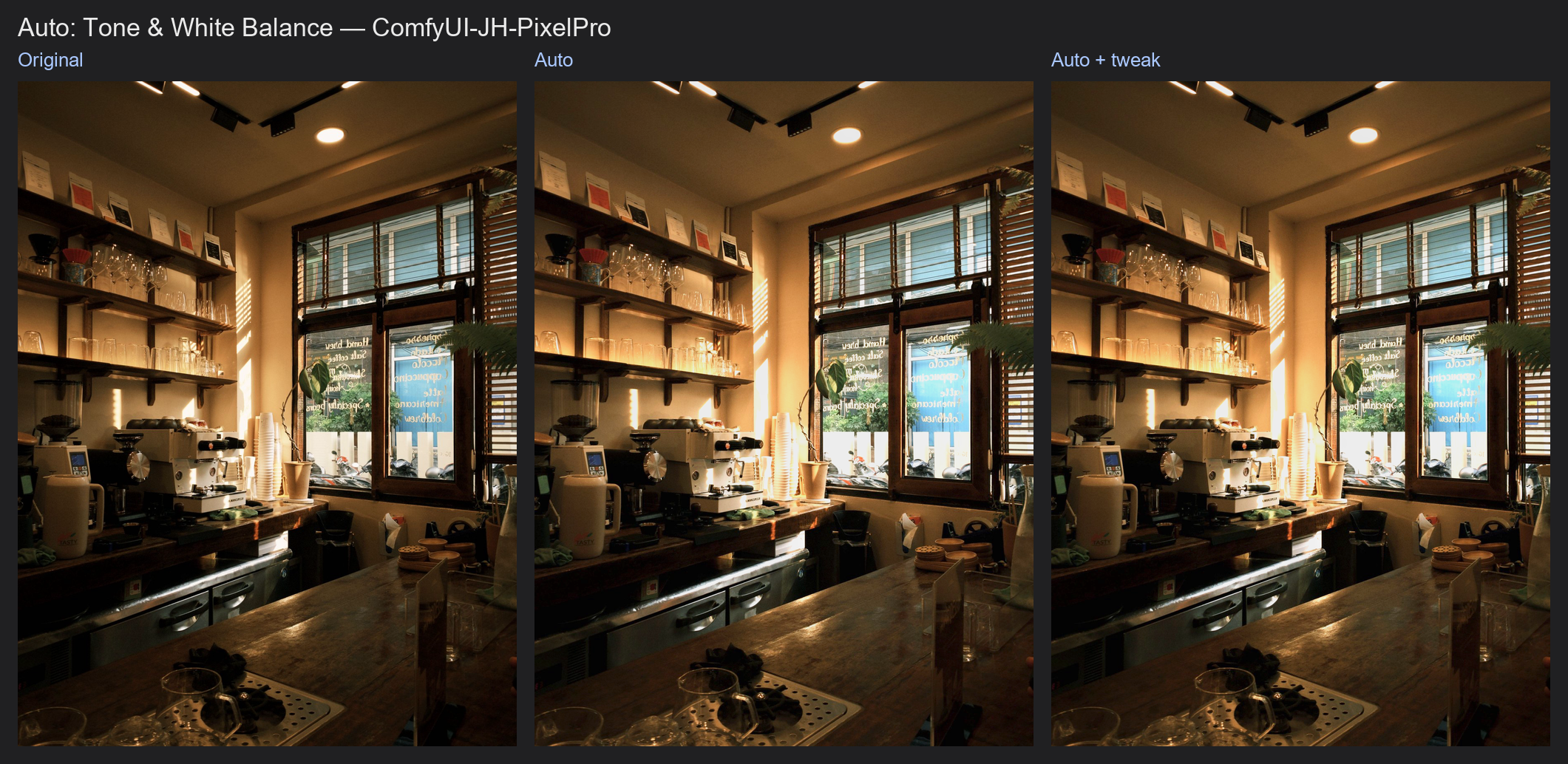
Auto Tone
Measures the photo and applies a first-pass correction: exposure, whites, blacks, highlights, shadows and white balance. It also gives you the settings it used, so you can keep editing them in ColorLab.
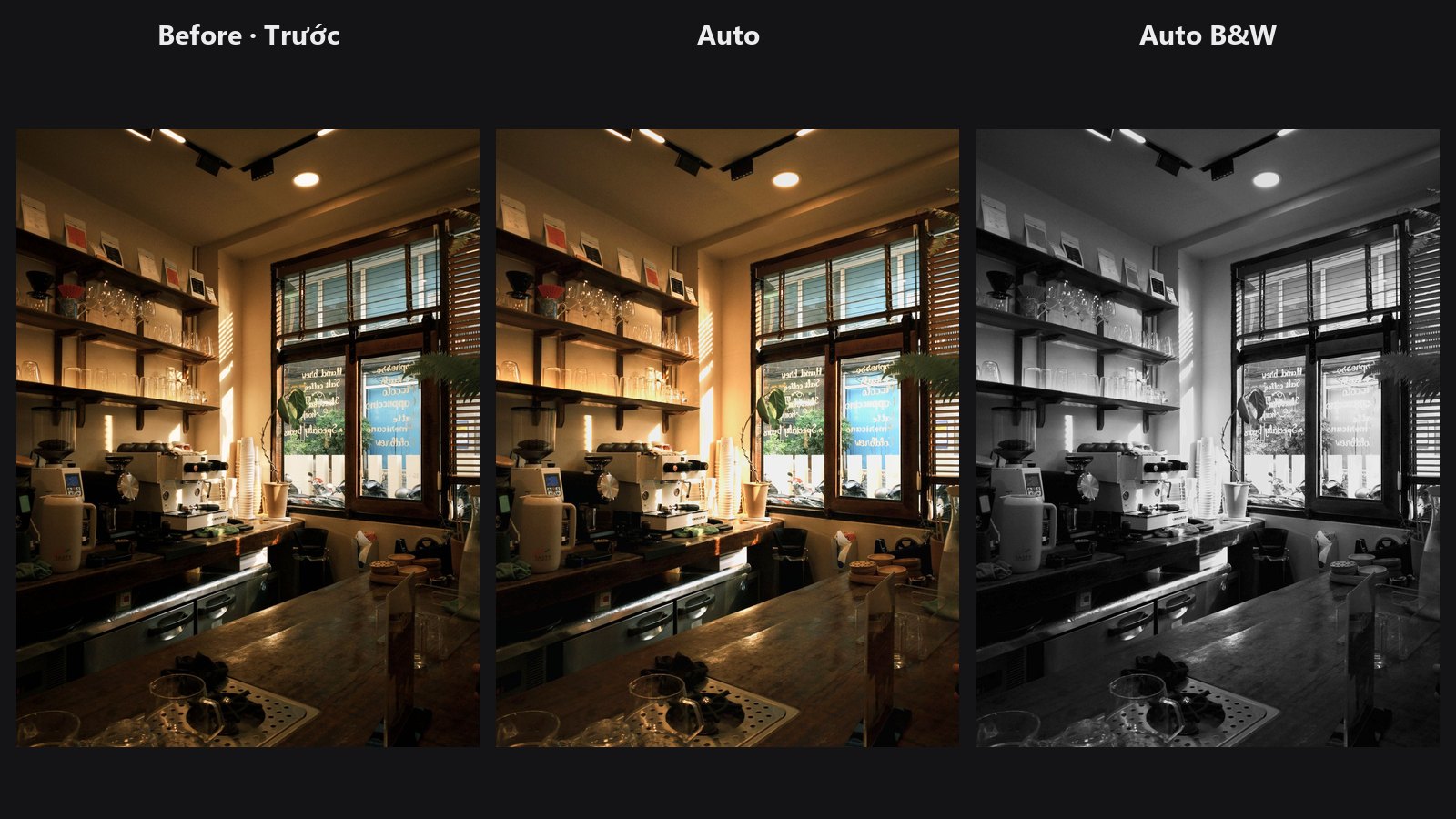
| In ComfyUI | Add Node → ComfyUI-JH-PixelPro → color → Auto: Tone & White Balance |
| Good for | A fast starting point for a batch, fixing dark or colour-cast photos, a quick automatic black and white |
| Speed | About 1.5 s per 4K image, VRAM about 1 GB |
When to use it
Use it like the Auto button in Lightroom: you get a sensible base, then adjust by hand. The result is not final. The params_json output holds every setting that was applied, as ColorLab keys, so you can see exactly what changed and refine it.
It is careful on purpose:
- A dark photo is brightened, but a bright high-key photo or a white background stays bright.
- White balance looks only at pixels that are close to grey. Skin, foliage and sunsets never pull it. A photo with no grey in it is left alone.
Note
The constants are hand-tuned on test photos. They are not fitted to Adobe's Auto, and the node does not claim to match Lightroom.
Quick start
- Load Image → Auto: Tone & White Balance → Preview Image.
- Keep the defaults. Lower
strength(try 0.6) if the correction feels too strong. - To fine-tune, connect
params_jsonto theparams_jsoninput of ColorLab. Its sliders add on top of the automatic settings. - To reuse the same settings on other photos, connect
params_jsonto Apply ColorLab Preset.
Settings
| Setting | Default | What it does | Tip |
|---|---|---|---|
image |
The photo or batch to correct. Each image of a batch is measured and corrected on its own. | ||
strength |
1.0 | 0 to 1. How much of the automatic correction to apply. 0 returns the original. | 0.5 to 0.8 for a lighter touch. |
exposure (optional) |
on | Fixes overall brightness. | Turn off if the brightness is already right. |
tone (optional) |
on | Sets Whites, Blacks, Highlights and Shadows. | |
white_balance (optional) |
on | Removes colour casts using near-grey areas. | Turn off for scenes lit by deliberately coloured light. |
black_and_white (optional) |
off | Converts to black and white with an automatic grey mix. | Brighter colour bands become brighter grey, which keeps colour contrast as tonal contrast. |
max_wb_shift (optional) |
50 | 0 to 100. The largest Temp/Tint change white balance may make. | Lower it for sunsets, candlelight and other intended warm or cool light. |
Outputs
| Output | What it is |
|---|---|
image |
The corrected image, same size as the input. |
params_json |
The ColorLab settings that were applied, including tone_engine = local and exposure_mode = linear. Only the first image of a batch. |
Tips from retouching
- Run Auto Upright first, then this node, so the measurement sees the final framing.
- Auto Tone suits a batch of similar photos as a starting grade. For a consistent look, grade one frame, then reuse its settings with Apply ColorLab Preset.
- A strong warm or cool cast that is part of the mood (golden hour, tungsten) is best protected by a low
max_wb_shiftor by turningwhite_balanceoff. - A scene with no neutral objects gets little or no white balance change. This is intended; set Temp and Tint by hand in ColorLab.
- If shadows still look heavy afterwards, add Shadows/Highlights Pro or CLAHE Local Contrast.
Under the hood
Everything is measured on a copy whose long edge is at most 512 px, so the result does not depend on image size. Source: core/auto_tone.py, wrapper nodes/auto_tone_node.py.
Exposure: from the log-average brightness, steering toward a 12 % key, a little below mid-grey, so moody and low-key photos keep their mood. Dark photos are brightened by up to +1 EV, limited so the brightest 0.5 % does not clip by more than half a stop. Bright photos are darkened only when really overexposed (up to -1 EV). When 40 % or more of the frame is near-white (product on white, high-key studio), only the rest of the photo (the subject) is judged, and it is darkened only if the subject itself is too bright; an all-white frame is left alone. Tiny corrections are skipped.
White balance: the mean colour of near-grey pixels in linear light, found over several rounds with a widening tolerance. The correction is scaled by the share of near-grey pixels, damped, and limited by max_wb_shift.
Tone: Whites and Blacks move the brightest and darkest 0.5 % of pixels toward fixed targets. Highlights and Shadows follow how much of the picture is near clipping.
Black and white: each colour band is made brighter or darker in grey than the image average.
The settings are applied by the ColorLab pipeline with strength scaling them, the same as in Apply ColorLab Preset. ComfyUI hands the image over on the CPU.
Related nodes
- ColorLab: fine-tune the automatic settings with sliders
- Apply ColorLab Preset: reuse the settings on other photos, with strength and mask
- Auto Upright: straighten the photo before correcting it
- Shadows/Highlights Pro: more control over dark and bright areas
Example workflow
Auto Tone example workflow: a dark café photo goes through Auto Tone, then params_json drives a ColorLab with Vibrance +15 and is shown in a text preview. It uses only core ComfyUI nodes and this pack. Copy workflows/sample_cafe.jpg into ComfyUI/input/ (Pexels License).