Auto Blemish
Detects the faces in a portrait and heals pimples, spots and small marks on the skin. The skin texture continues through each healed spot, so it does not look smoothed.
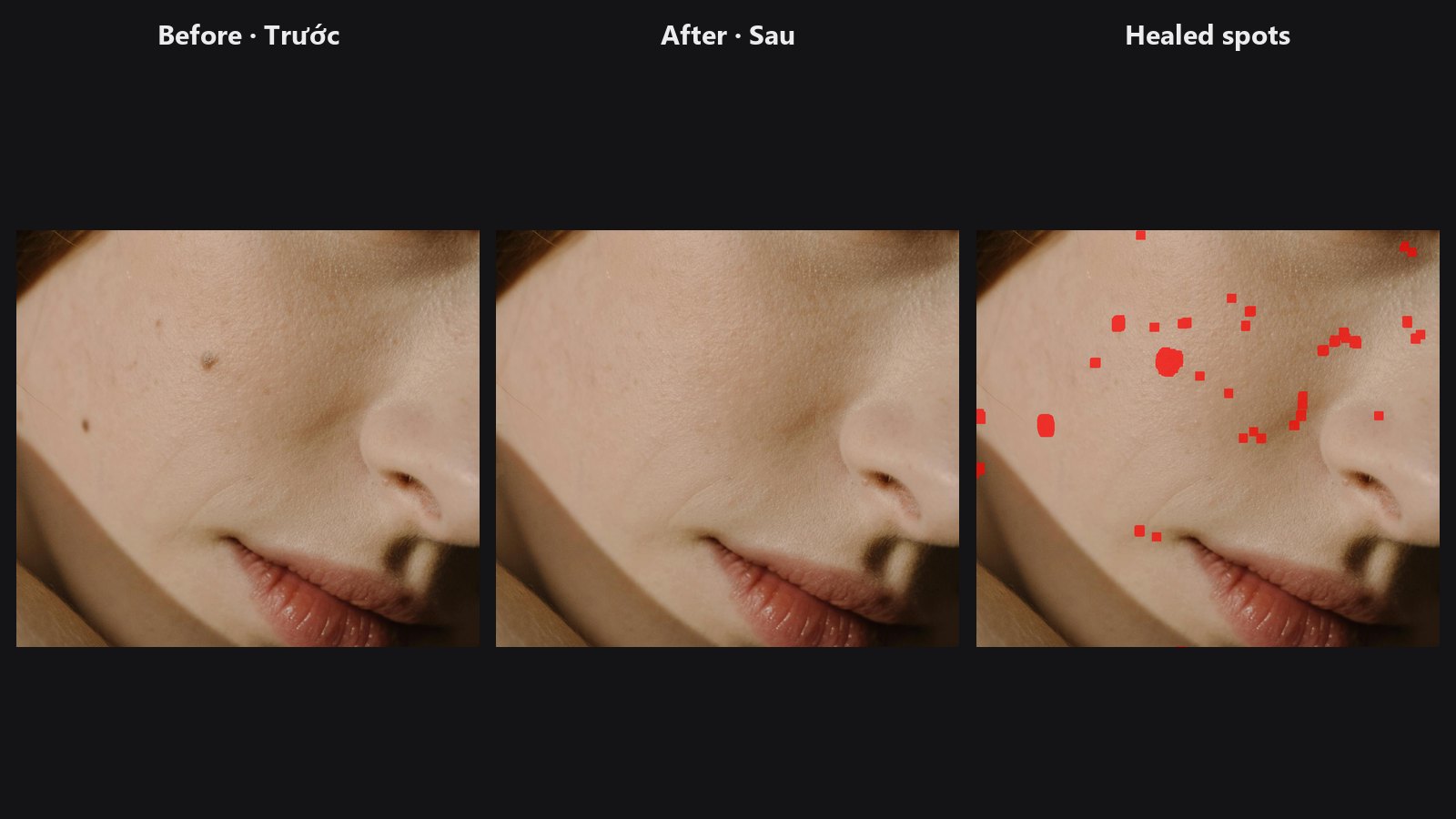
| In ComfyUI | Add Node → ComfyUI-JH-PixelPro → face → Face: Auto Blemish |
| Good for | A first pass of spot healing on portraits, group photos, batches of headshots, body skin with your own mask |
| Speed | About 5 s on a CPU for an 8 MP portrait, under 1.1 GB VRAM |
When to use it
This is the automatic version of the Spot Healing Brush. It does the dull part of portrait retouching: finding every small mark. You then check the result and fix what remains by hand.
Warning
It also removes natural moles unless you protect them. Draw a mask over any beauty mark, freckle pattern or tattoo you want to keep and connect it to protect_mask.
Each face is processed in its own crop, with its own spot size, so group photos work. Eyes, brows and the mouth are never touched. For skin without a face in the frame (back, hands, arms), give the node a mask of the skin area instead.
Quick start
- Load Image → Face: Auto Blemish → Preview Image.
- Keep the defaults. Raise
sensitivityif faint marks are left. Lower it if freckles start to disappear. - Connect
spot_maskto Mask Preview to see exactly what was healed. - Check
face_count. If it is 0 on a portrait, the face was not found; usemaskinstead.
Settings
| Setting | Default | What it does | Tip |
|---|---|---|---|
image |
The portrait to retouch. | ||
sensitivity |
0.5 | 0 to 1. Higher catches fainter marks. Very high also removes freckles. | 0.3 to 0.6 for most portraits. |
spot_scale |
1.0 | 0.25 to 4. The largest mark to remove, relative to the automatic size (5 % of each face width). | Raise it for bigger pimples. Lower it to keep small features. |
mask (optional) |
Skin area to clean instead of the detected faces. Spot size then follows the mask width. | For body, back and hands. | |
protect_mask (optional) |
Areas that are never touched. | A beauty mark you keep, tattoos. |
Outputs
| Output | What it is |
|---|---|
image |
The retouched image. |
spot_mask |
The pixels that were healed. Check it with Mask Preview. |
face_count |
How many faces were found. 0 when a mask is given. |
Tips from retouching
- Always look at
spot_maskonce. It shows whether the node caught real blemishes or something you want to keep. - Natural moles and strong freckles are at risk at high
sensitivity. Protect them withprotect_mask. - Follow with Skin Smoother or Frequency Separation for tone evening. Auto Blemish only removes marks.
- A mark that survived is often bigger than the automatic limit. Raise
spot_scale, or heal it with Heal / Content-Aware Fill. - Large images work well: each face is cropped, so cost depends on the faces, not the whole frame.
Under the hood
- Region. Face Detect Lite (YuNet) finds the faces. The weights are downloaded once by Kornia. Each face box, grown by 25 %, is processed as its own crop. Only skin-coloured pixels are kept (a soft YCrCb test that covers light to dark skin), minus discs around the eyes, brows and mouth placed from the five landmarks. A user
maskreplaces the face search. - Detection. The spot detector of Dust & Spot Removal runs on a signal made of luma darkening plus redness, because pimples are redder more than they are darker. The largest spot follows the face size (about 5 % of the face width).
- Healing. The texture fill of Dust & Spot copies the best nearby skin patch, matched on the ring and brightness-corrected, so pores continue.
Source: core/blemish.py, wrapper nodes/blemish_node.py.
Related nodes
- Heal / Content-Aware Fill: remove marks that you paint yourself
- Dust & Spot Removal: the spot engine used here, for sensor dust
- Face Detect Lite: the face detector used here
- Skin Smoother: even out skin tone after cleaning
- Mask Preview: see what was healed
Example workflow
Auto Blemish example workflow runs the sample portrait through Auto Blemish and shows the previews plus a Mask Preview of spot_mask. Copy workflows/sample_portrait.jpg into ComfyUI/input/ (Pexels License).