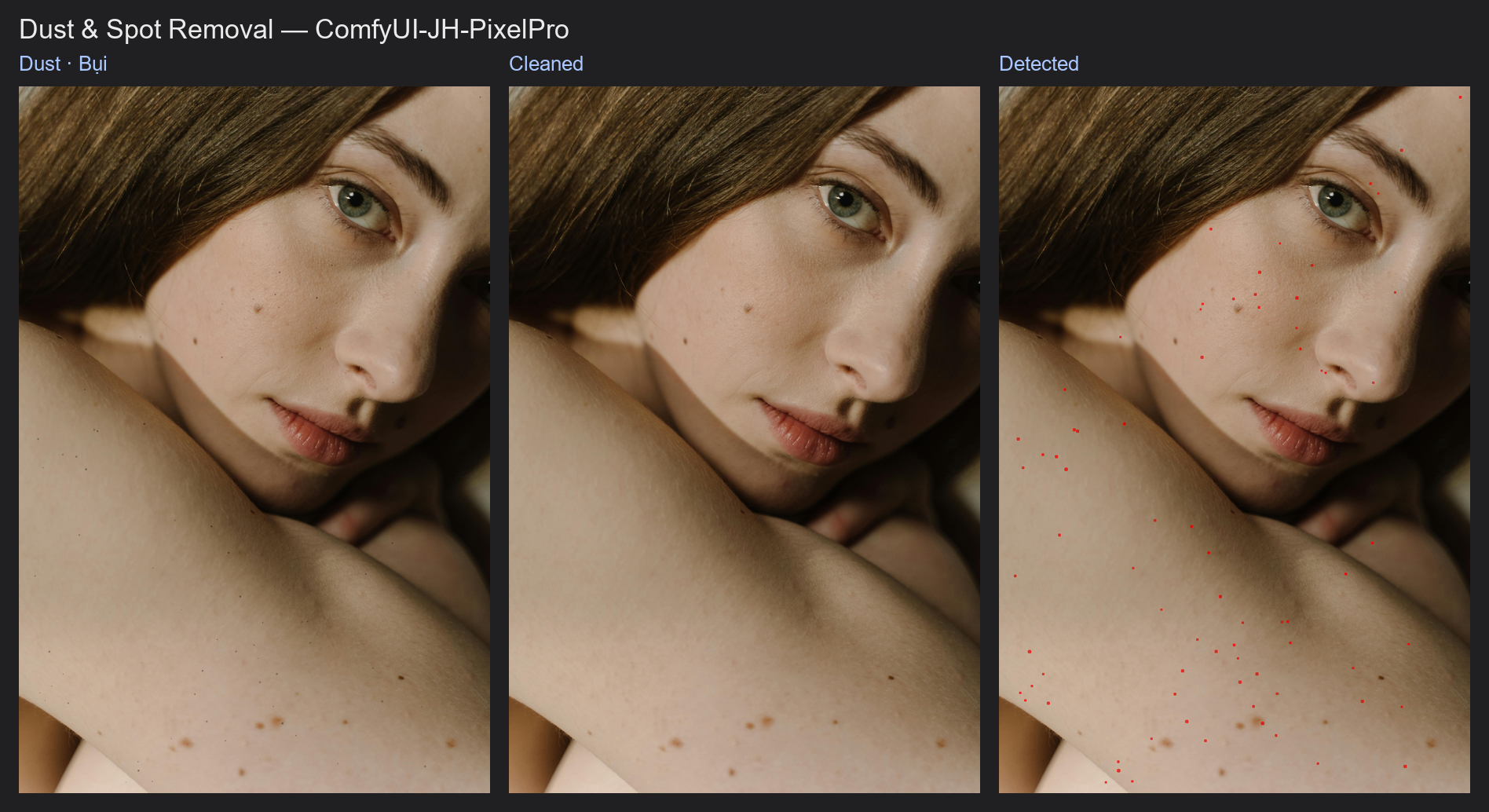
Dust & Spot Removal
Automatic dust-spot cleanup, like running the Spot Healing Brush over every speck at once. It only touches small spots and leaves eyes, hair and edges alone.
| In ComfyUI | Add Node → ComfyUI-JH-PixelPro → filters → Filters: Dust & Spot Removal |
| Good for | Sensor dust on skies and backdrops, small specks on skin, scanned film dust, small blemishes |
When to use it
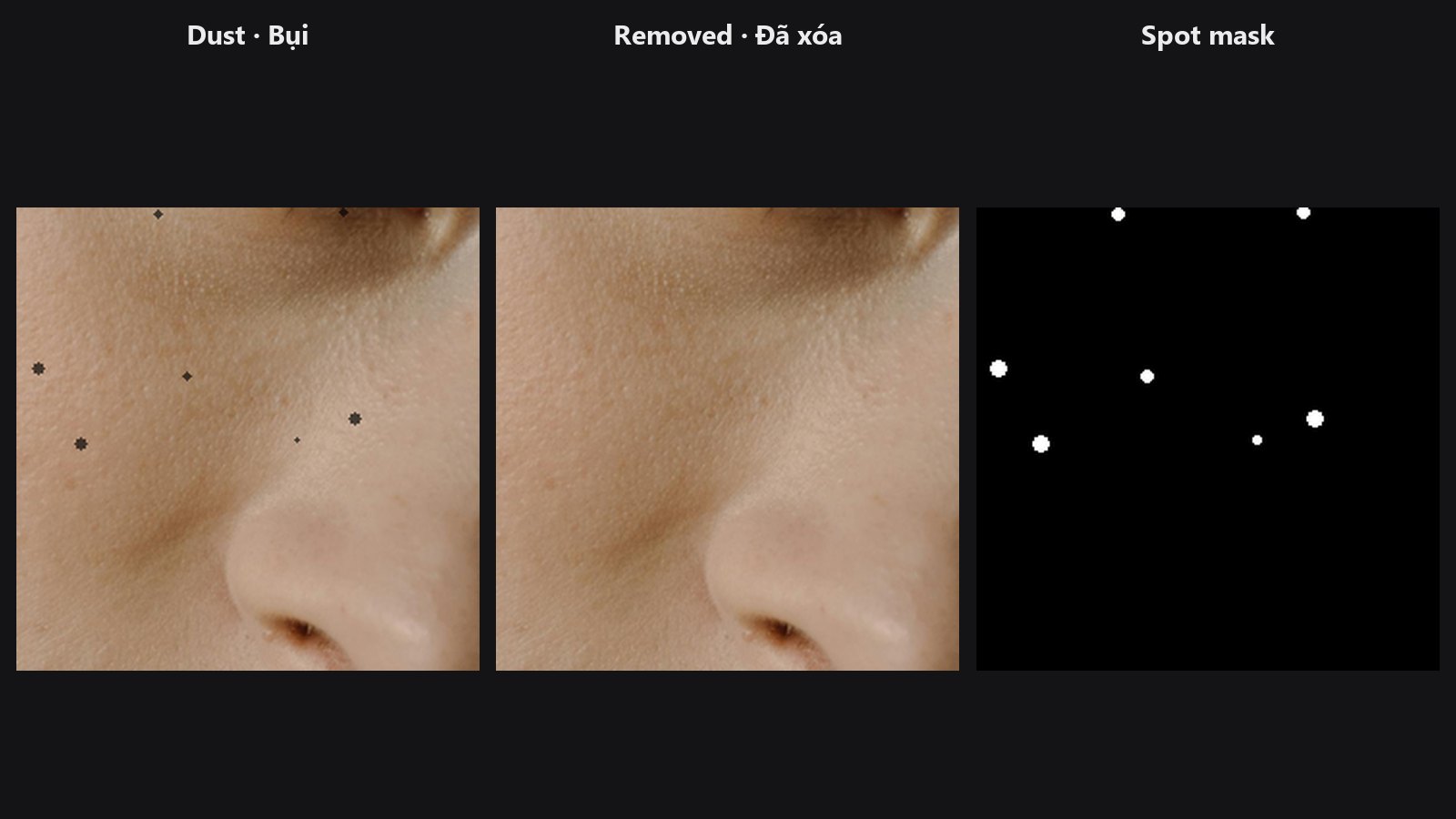
Dust on the sensor shows up as small dark dots, most visible on smooth areas such as sky, studio backdrops and skin. This node looks for small spots that are darker (or brighter) than the area around them, then fills each one from the surrounding colour.
A spot only counts if it fits inside spot_size pixels. Bigger shapes such as eyes, moles you want to keep, and long thin things like hair strands are never touched.
Quick start
- Load Image → Filters: Dust & Spot Removal → Preview Image.
- Keep
modeondarkfor sensor dust. Usebrightfor white specks,bothfor either. - Set
spot_sizeslightly bigger than the biggest speck you want gone. - Look at the
spot_maskoutput (with Mask Preview) to see what was removed. Raise or lowersensitivityuntil only the specks are selected.
Settings
| Setting | Default | What it does | Tip |
|---|---|---|---|
spot_size |
12 | Largest spot diameter in pixels (2 to 64). Anything bigger or longer is ignored. | Keep it small on skin so freckles and pores stay. |
sensitivity |
0.5 | How faint a spot can be and still be caught (0 to 1). Higher catches fainter spots. | Raise it slowly; too high starts to pick up skin texture. |
mode |
dark |
dark, bright or both. |
dark for sensor dust. |
mask (optional) |
none | Spots are only removed where the mask is above 0.5. | Use a skin or sky mask. |
protect_mask (optional) |
none | Spots are never removed where this mask is above 0.5. | Paint over freckles or beauty marks you want to keep. |
fill_mode (optional) |
blur |
blur = smooth fill from the surrounding colour (the original behaviour). texture = copies the best-matching nearby patch, so skin pores, film grain or fabric continue through the spot. |
Use texture on skin, grain or fabric where a smooth patch would look flat. About 2 s at 4K. |
fill_mode was added in v1.8.0. The default blur keeps results identical to before. Detection is the same in both modes, so spot_mask is identical.
Outputs
| Output | What it is |
|---|---|
image |
The cleaned image. |
spot_mask |
White (1) where pixels were replaced, black (0) elsewhere. Everything outside it is unchanged. |
Tips from retouching
- On portraits, connect a skin mask to
mask(and the eyes and hair toprotect_mask). The node already skips thin or elongated shapes and spots that sit in busy surroundings, so eyelashes, hair and edges are left alone, but a mask is still the safest way to keep real details such as moles or catchlights. - Check
spot_maskfirst. If it shows long lines or lots of skin pores, lowersensitivityorspot_size. - Limit the node to the skin with
mask, or protect the eyes and hair withprotect_mask. - For heavier skin work, follow it with Skin Smoother or work on a separate layer with Frequency Separation.
- Run it before sharpening, otherwise Smart Sharpen makes dust more visible.
- Very big dust blobs (larger than 64 px) need manual cloning.
Under the hood
Luminance (Rec. 709 weights) is compared with a median background computed on a reduced-size copy (area average, then a 9 × 9 median in row chunks), so no big-kernel median ever runs at full resolution. The difference is thresholded (0.01 + 0.2 × (1 − sensitivity)²), then connected blobs are kept only if they are compact: bounding box at most spot_size pixels, aspect ratio at most 2, fill ratio at least 0.5 and at least about 3 px thick (a distance-transform peak of 1.3 px or more), so strands of hair and eyelashes are dropped. A blob must also sit in calm surroundings: the luminance spread in a window around it (with the blobs themselves left out) must stay below 0.25 × the spot contrast, which rejects spots on edges and in detail. On the clean sample portrait this changes about 0.006 % of the pixels. The blobs are dilated by max(1, spot_size // 6) pixels and limited by the masks. Filling uses normalised Gaussian convolution of the pixels outside the spots, computed at the reduced size and scaled back up, then blended in with a 1 px soft edge. A 2048 × 2048 image peaks at under 0.5 GB of GPU memory. If no spot is found the input is returned unchanged. With fill_mode set to texture, each spot is filled instead from the best-matching nearby patch, chosen by comparing the ring of pixels around the spot. The patch's brightness and colour are then matched to the surroundings. Source patches that contain a speck of their own are rejected, and where no clean patch fits, the spot falls back to the blur fill. Source: core/dust_spot.py.
Related nodes
- Mask Preview to view
spot_maskover the picture - Skin Smoother for overall skin smoothing
- Frequency Separation for manual blemish work
- Mask Combine to build the
maskorprotect_mask
Example workflow
Dust & Spot Removal example workflow cleans 70 synthetic sensor-dust specks from the portrait at default settings and marks what it found in red. It uses only core ComfyUI nodes and this pack. Copy workflows/sample_dust.jpg into ComfyUI/input/.