Edge-Aware Mask Refiner
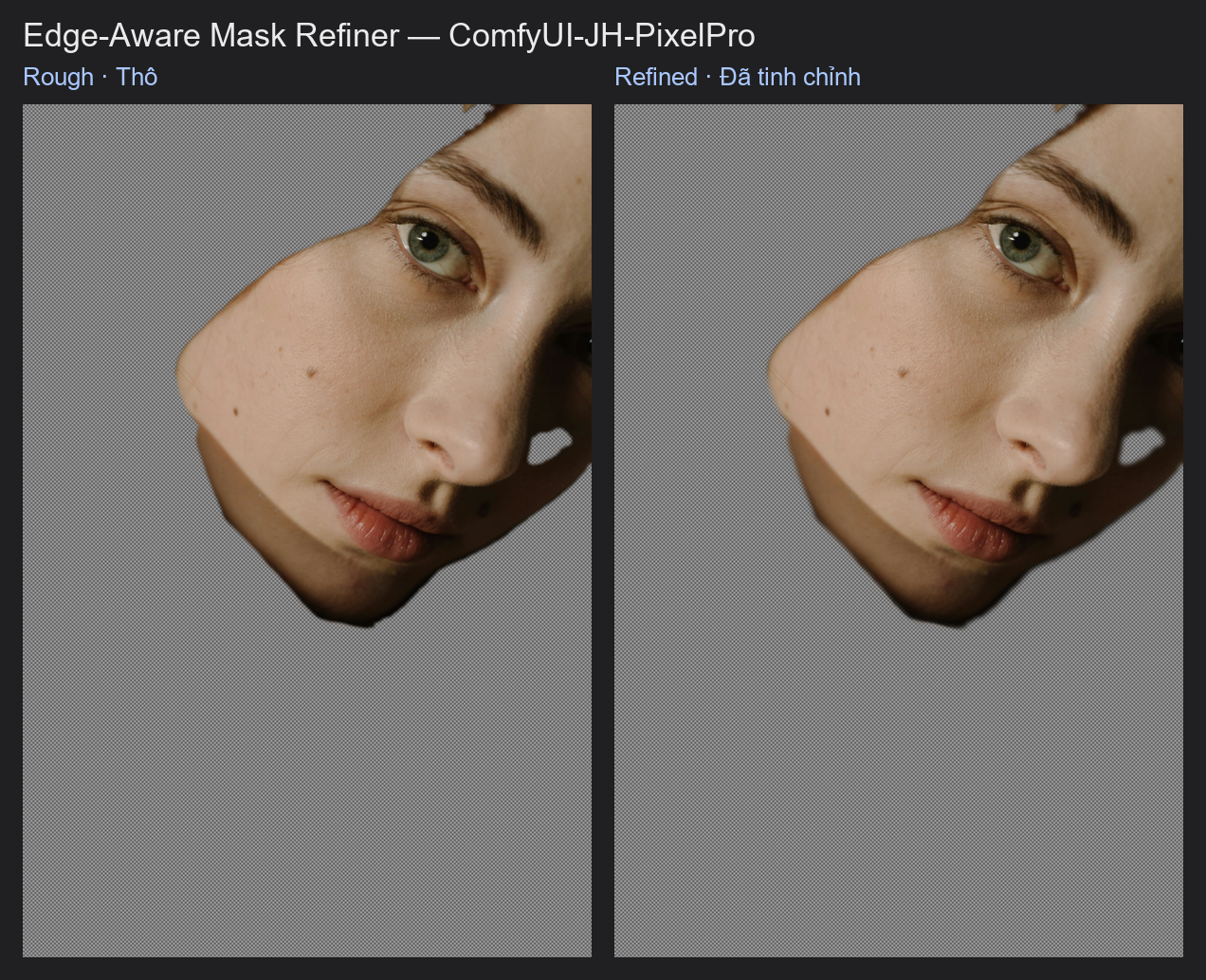
Your mask is roughly right, but the edge cuts through the subject or leaves a halo. This node looks at the photo and pulls the mask edge onto the real boundary.
| In ComfyUI | Add Node → ComfyUI-JH-PixelPro → mask → Mask: Edge-Aware Refiner |
| Good for | Fixing loose AI-segmentation masks, tightening a rough selection around a person or product, reducing halos |
When to use it
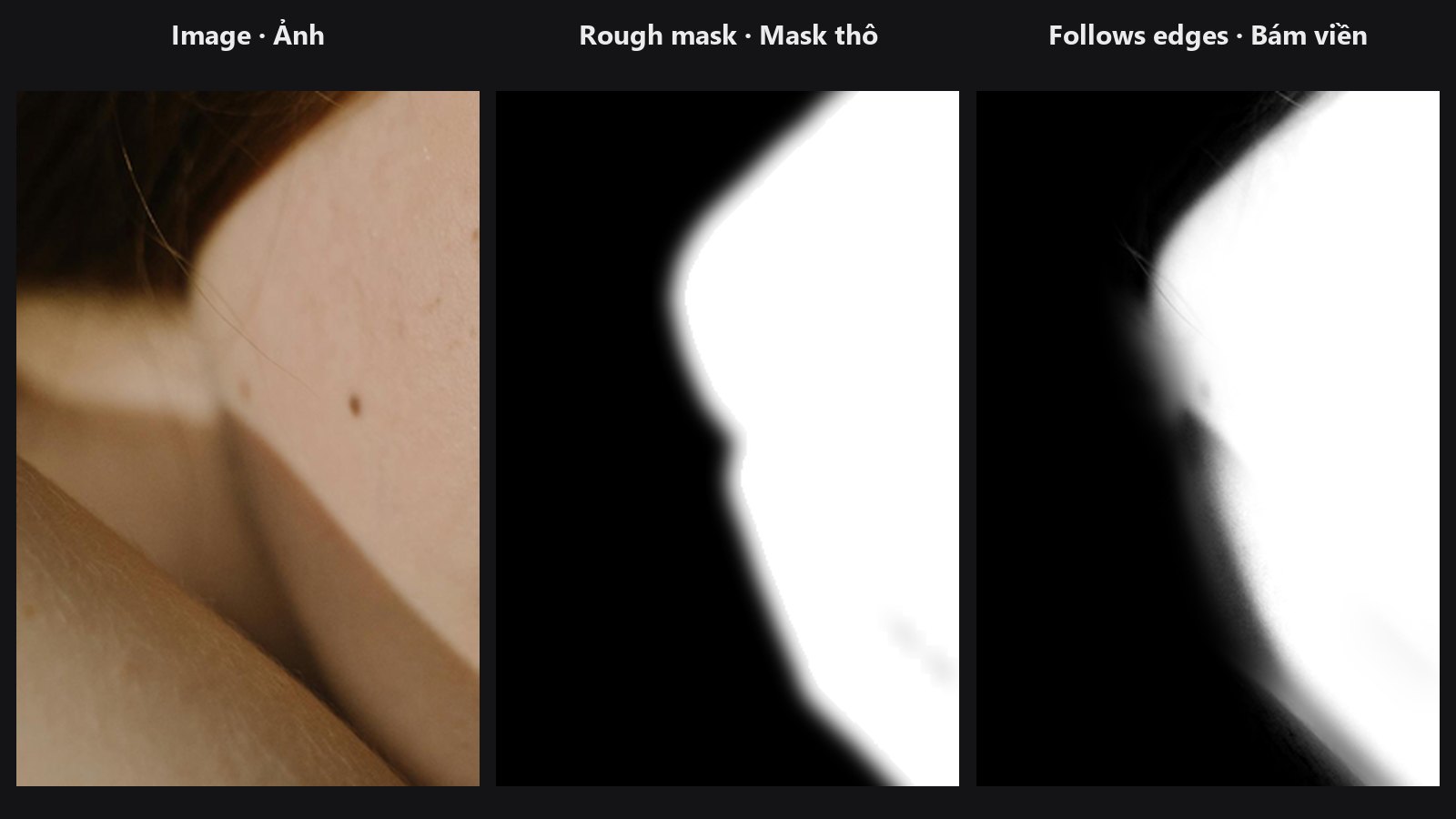
Segmentation tools such as SAM often give a mask that is a few pixels off. A blur cannot fix that, because a blur does not know where the real edge is. This node uses the photo as a guide: where the photo has a strong edge, the mask edge snaps to it; where the photo is smooth, the mask stays smooth. This technique is called a guided filter.
It works best on edges with clear contrast between subject and background. For wispy hair where the edge is partly transparent, use Alpha Matte, which can recover real semi-transparency.
Quick start
Load Image→ your segmentation node → mask.- Connect the mask to
maskand the same photo toguide. The two must have the same width and height. - Try
radius8 andeps0.001. Increaseradiusif the mask is far off. - Preview with Mask Preview in overlay mode with
show_edgeson.
Settings
| Setting | Default | What it does | Tip |
|---|---|---|---|
radius |
8 | How far (in pixels) the filter looks around each pixel. A larger radius can correct a looser mask. | 1 to 32. Use roughly the size of the error you want to fix. |
eps |
0.001 | Edge sensitivity. Smaller values follow the photo's edges more tightly; larger values give a smoother, softer result. | 0.000001 to 1. Try 0.0001 for crisp edges, 0.01 for soft ones. |
feather_sigma |
0.0 | Optional extra Gaussian blur after filtering, in pixels. 0 = off. | 0 to 64. Use 1 to 3 for a gentle finish. |
guide_mode (optional) |
luma |
luma = follows the brightness of the guide (the original behaviour). rgb = follows the colour guide, so it also follows edges between colours of similar brightness. |
Try rgb for red hair on green leaves or similar colour-only edges. |
Output: refined_mask (MASK).
Added in v1.8.0. The default luma gives exactly the same results as before, so existing workflows are unchanged.
Tips from retouching
- Clean up the mask first with Mask Cleanup, then refine edges.
- If the result looks too soft, lower
eps. If it follows noise or texture, raiseeps. - Do not use a huge
radiuson a mask that is already close. It can pull in unwanted background detail. - Run it before Mask Combine or compositing so every edge is already tight.
Under the hood
A grey-scale guided filter (He et al.) computed on the luma of the guide image (0.299 R + 0.587 G + 0.114 B). Window statistics come from box filters built from two 1-D average pools with replicate padding, so pixels at the image border are not pulled towards zero. The coefficients are a = cov(I, p) / (var(I) + eps) and b = mean(p) - a * mean(I); the output is the box-filtered a times the guide plus the box-filtered b, clamped to 0..1. An optional Gaussian blur follows. The guide must be float RGB with the same height and width as the mask; a guide batch of 1 is broadcast. With guide_mode set to rgb, the colour-guide form of the filter (He et al., 2010) is used instead: it uses the pack's own guided filter and works at any image size. Source: core/mask_edge_refine.py.
Related nodes
- Sub-Pixel Mask Refiner for feathering without a guide image
- Alpha Matte for hair and semi-transparent edges
- Trimap Builder to prepare the matting input
- Mask Preview for checking the edge
Example workflow
The Decontaminate Colors example workflow uses guide_mode rgb before Decontaminate Colors.
Edge-Aware Mask Refiner example workflow. Copy workflows/sample_portrait.jpg and workflows/sample_binary_mask.png into ComfyUI/input/. A deliberately soft mask from Sub-Pixel Mask Refiner is snapped onto the real hair and skin edge, using the portrait as the guide. It uses only core ComfyUI nodes and this pack.