Motion / Zoom Blur
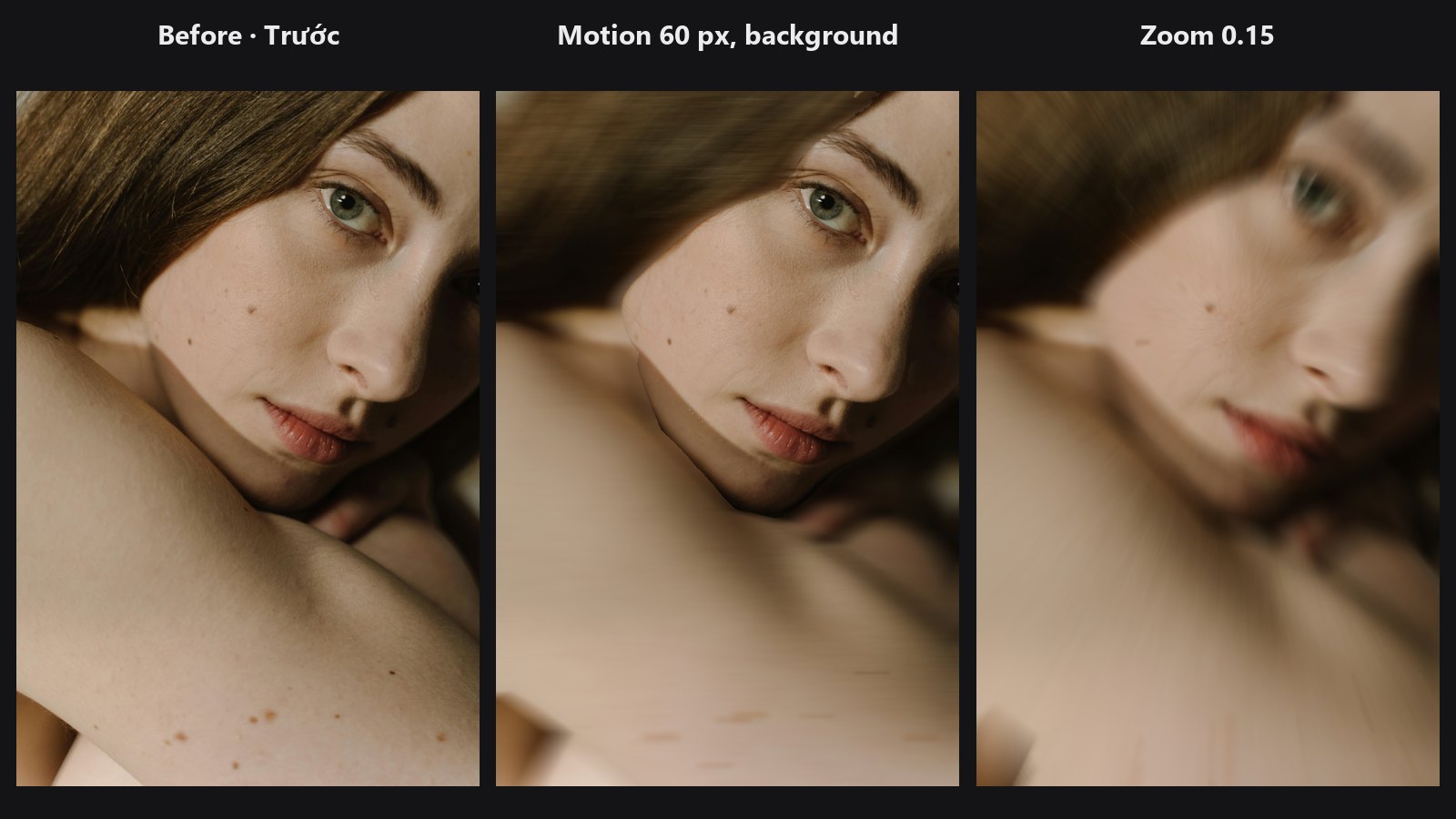
Fakes a moving camera or a zoom during the exposure. Blur only the background for a panning look, or streak the frame toward a centre point.
| In ComfyUI | Add Node → ComfyUI-JH-PixelPro → filters → Filters: Motion / Zoom Blur |
| Good for | Panning shots, speed effects, zoom bursts, adding energy to a static background |
| Speed | At 4K on a GPU: motion 200 px about 1.4 s, zoom about 0.1 s, under 1 GB VRAM. |
When to use it
motionaverages the picture along a straight line, like a camera or subject moving during the exposure. Set the direction withangleand the length withdistance.zoomaverages along the rays toward a centre point, like turning the zoom ring during the exposure. Pixels near the centre barely change; the frame edge streaks the most.
For a panning look, blur the background only. Connect an inverted subject mask to mask: the blur applies where the mask is white.
Quick start
- Load Image → Filters: Motion / Zoom Blur → Preview Image.
- Motion: set
modetomotion,angle0 for a sideways streak, and trydistance60. - Zoom: set
modetozoomand keepzoomat 0.15, with the centre at 0.5 / 0.5. - Optional: connect an inverted subject mask to
maskto keep the subject sharp.
Settings
| Setting | Default | What it does | Tip |
|---|---|---|---|
mode |
motion |
motion = blur in one direction. zoom = streaks toward a centre point. |
|
angle |
0 | -180 to 180 degrees. 0 = horizontal, 90 = vertical. Used by motion only. |
Match the direction the subject moves. |
distance |
20 | 0 to 1000 pixels. Blur length for motion. |
Scale it with image size: 60 px at 2K is subtle, 200 px at 4K is strong. |
zoom |
0.15 | 0 to 0.9. The frame edge streaks over this fraction of its distance to the centre. Used by zoom only. |
0.1 to 0.3 looks natural. |
center_x, center_y |
0.5, 0.5 | 0 to 1. Where the zoom streaks point to, across and down the frame. Used by zoom only. |
Put it on the subject's face or eye. |
mask (optional) |
none | Blur only where the mask is white; elsewhere the image is unchanged. | Use an inverted subject mask. |
Output
| Output | What it is |
|---|---|
image |
The blurred image, same size as the input. motion with distance under 0.5, or zoom of 0, returns the input unchanged. |
Tips from retouching
- Pass the subject mask through Mask Combine (invert) and soften its edge with Mask Edge Smoother so the sharp subject does not show a hard rim.
- Blur first, then add Smart Sharpen to the subject only.
- Very long
distanceon a busy background becomes a smear. Raise it gradually. - Move
center_xandcenter_yonto the subject for a zoom burst that pulls the eye in.
Under the hood
Both modes are a box blur along a one-dimensional path. A box of n1 × n2 taps is the same as a box of n1 taps at spacing 1 followed by one of n2 taps at spacing n1, so a blur D pixels long needs about 2·√D warps instead of D. Zoom uses the same trick in log-radius, where scalings add up. Each warp is a bilinear grid_sample with reflection at the borders, and the average keeps the overall brightness. Memory stays proportional to the number of pixels. ComfyUI hands images over on the CPU; the node moves the work to the GPU when one exists and falls back to the CPU on out-of-memory. The optional mask blends the result with the original. Source: core/directional_blur.py.
Related nodes
- Smart Sharpen to sharpen the subject afterwards
- Mask Combine to invert or combine masks
- Mask Edge Smoother to soften the mask edge
- Skin Smoother for a different kind of softening
Example workflow
Motion / Zoom Blur example workflow shows the motion blur on the background only and the zoom burst. Copy workflows/sample_portrait.jpg and workflows/sample_binary_mask.png into ComfyUI/input/.