Unwrap Face
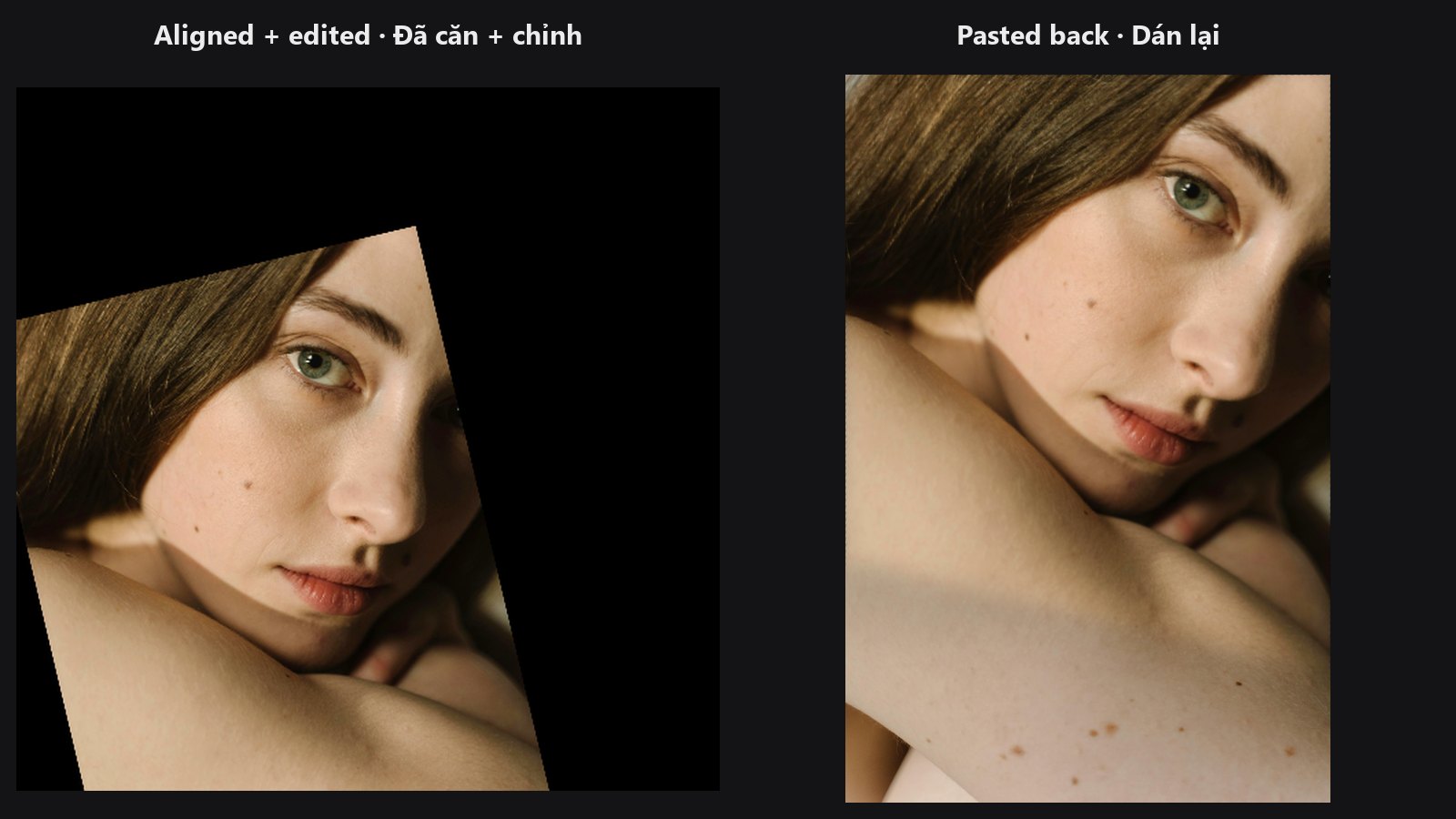
Puts an edited face crop back where it came from. It undoes the straightening done by Facial Aligner and blends the result into your original photo.
| In ComfyUI | Add Node → ComfyUI-JH-PixelPro → face → Unwrap Face (paste back) |
| Good for | Finishing an align → edit → paste-back chain; keeping the rest of the photo at full original quality |
When to use it
AI retouching, upscaling and face restoration work best on a small, upright, centred crop. Facial Aligner makes that crop and also gives you the exact inverse transform. Once the crop is edited, Unwrap Face uses that transform to rotate, scale and place it back on the full-size photo, so only the face area changes and the rest stays untouched.
Quick start
- Run Face Detect (or Face Detect Lite) and send
landmarks_jsonto Facial Aligner. - Edit the aligned crop (
image_aligned) with your AI or retouch nodes. - Connect the edited crop to
edited_aligned, your original photo tooriginal_image, and Facial Aligner'sinverse_matrix_jsontoinverse_matrix_json. - Check
image_compositedin a Preview Image. Adjustfeather_radiusif the edge shows.
Settings
| Setting | Default | What it does | Tip |
|---|---|---|---|
edited_aligned |
— | The edited, aligned face crop. | Keep it the same size as the aligner output. |
original_image |
— | The full-size photo to paste into. | The same image you detected on. |
inverse_matrix_json |
identity matrix | The inverse transform from Facial Aligner. | Always wire it. The default does nothing useful. |
feather_radius |
16.0 (0–128) |
Softness of the edge, in pixels. 0 is a hard edge. |
Larger values hide the seam but soften the face edge. Ignored when mask_override is connected. |
mask_override |
optional | Your own blend mask, full-size like the original. | Use a face or skin mask to paste only the skin, not the whole crop. |
| Output | Type | Meaning |
|---|---|---|
image_composited |
IMAGE |
The original photo with the edited face pasted in. |
mask_used |
MASK |
The blend mask that was applied. |
Tips from retouching
- By default the pasted area is the whole aligned square, softened by
feather_radius. That includes hair and background in the crop. Connect a face or skin mask tomask_overrideto paste only the parts you want. - If your AI pass changes the crop's resolution, scale it back to the aligner's output size first, so the transform lines up.
- Visible colour step at the edge? Match colours before pasting back with Color Matcher, or use Face Beauty Blend for a final, strength-controlled blend.
- With a batch,
edited_aligned,original_imageand the matrix list must each have one entry or match the batch size.
Under the hood
The crop is warped onto the original canvas with kornia.geometry.transform.warp_affine, using the inverse matrix (3×3 or 2×3, one per image). Without mask_override, a white square the size of the crop is warped the same way, shrunk inward by 2 × feather_radius and blurred with a Gaussian (sigma = feather_radius), so the soft edge stays inside the crop and never picks up the empty padding around it. The result is mask × warped + (1 − mask) × original, clamped to [0, 1]. mask_override must match the original's height and width exactly. Inputs outside [0, 1] are clamped with a warning. The warp runs over the full canvas, so large images are slower on CPU than on GPU. The code lives in core/unwrap_face.py.
Related nodes
- Facial Aligner — makes the crop and the inverse matrix.
- Face Beauty Blend — a final masked blend with strength control.
- Face Detect and Face Detect Lite — find the landmarks.
- Face category overview
Example workflow
Unwrap Face example workflow. Copy workflows/sample_portrait.jpg into ComfyUI/input/ first.