Decontaminate Colors
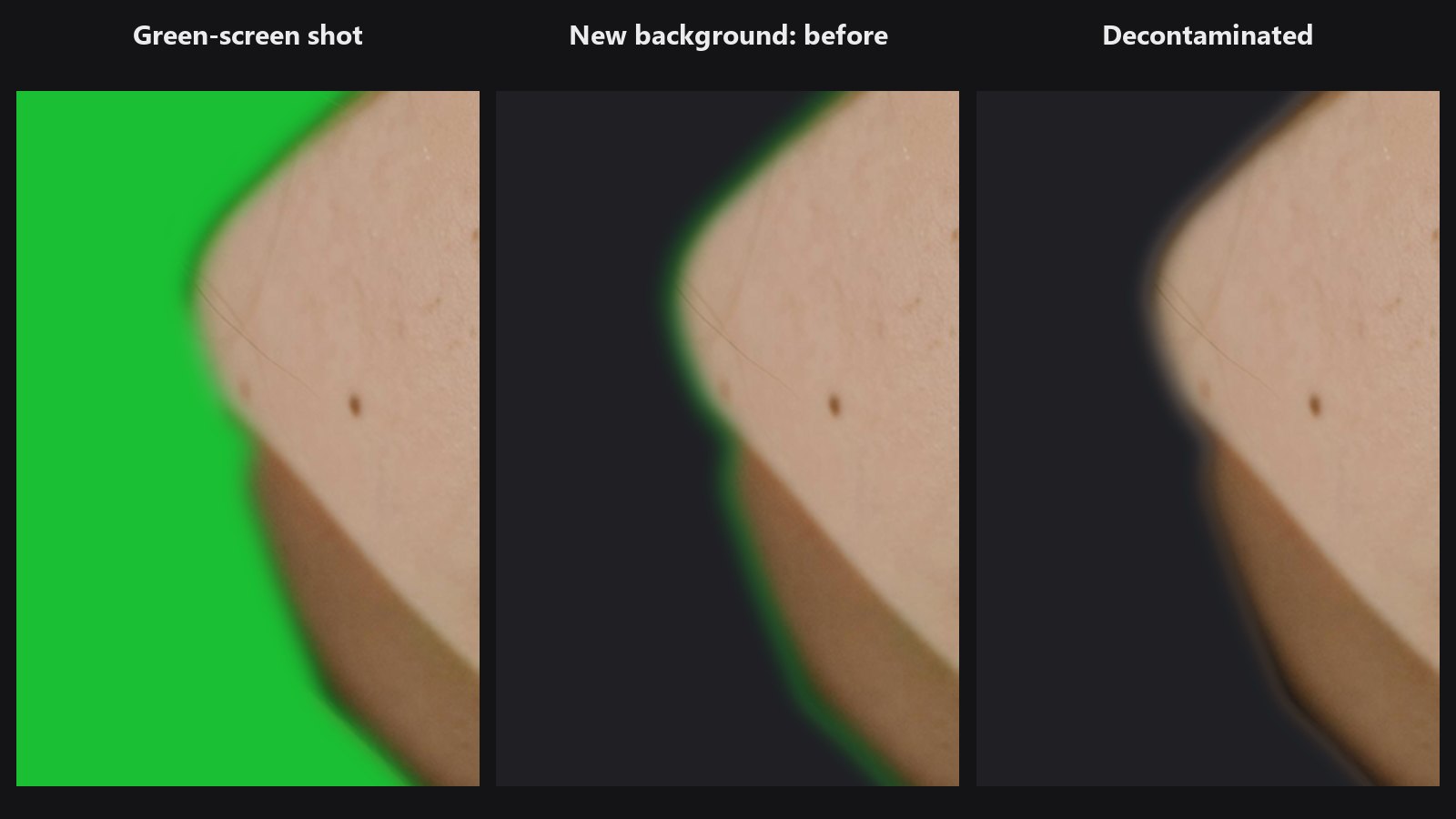
Cleans the coloured fringe around a cut-out. When you place a subject on a new background, the edge pixels still carry the old background colour. This node replaces it with the subject's own colour.
| In ComfyUI | Add Node → ComfyUI-JH-PixelPro → mask → Mask: Decontaminate Colors |
| Good for | Green-screen spill on hair, bright sky halos around a subject, any cut-out with a soft matte |
| Speed | About 0.9 GB VRAM at 4K. |
When to use it
A matte has soft edge pixels (mask values between 0 and 1). Each of those pixels is a mix of the subject and the old background. Once you put the subject on a new background, that mix shows as a green, blue or white fringe, most visible on hair.
This node estimates the subject's colour near each edge pixel and writes it back. You then composite with the decontaminated image and the same mask, for example with Mask Preview in cutout mode or the Layer nodes.
It cannot help a hard mask: if every mask value is exactly 0 or 1, nothing changes. Make a soft edge first with Alpha Matte, Sub-Pixel Mask Refiner or Edge-Aware Mask Refiner.
Quick start
- Load Image → a soft subject mask (Alpha Matte, or a refined mask).
- Connect the photo to
imageand the mask tomaskof Mask: Decontaminate Colors. - Start with
radius16 andstrength1. - Composite the output
imagewith the same mask over your new background and compare with the original.
Settings
| Setting | Default | What it does | Tip |
|---|---|---|---|
radius |
16 | 1 to 256. How far, in pixels, the node looks for the subject's own colour. | Raise it for wide, wispy edges such as hair. |
strength |
1.0 | 0 to 1. 0 returns the image unchanged, 1 is the full correction. | Lower it if the edge looks too clean next to the rest of the subject. |
Output
| Output | What it is |
|---|---|
image |
The image with corrected edge colours. Pixels where the mask is exactly 0 or 1 are unchanged. |
Tips from retouching
- Always use the output image with the same mask. The mask still decides how much of the subject shows.
- A wide, soft mask gives the node more to work with. Refine the edge first, then decontaminate.
- Raise
radiusfor long hair. Keep it low for crisp product edges. - Check the result on the final background, not on the original one: the fringe only shows there.
Under the hood
Edge pixels follow I = alpha × F + (1 − alpha) × B. The node estimates the subject colour from solid subject pixels (alpha at least 0.95) and the background colour from pixels with alpha at most 0.05 nearby, by normalised convolution. Where alpha is large it solves the equation for F, which keeps fine hair detail. Where alpha is small, that solve is unstable, so it uses the nearby subject colour instead. In between, the two blend. If no solid pixels are in reach, wider blurs fill in. The blurs run on a reduced copy and are scaled back up, so memory grows with the number of pixels only. Source: core/decontaminate.py.
Related nodes
- Alpha Matte to make the soft mask
- Edge-Aware Mask Refiner to snap a rough mask onto the real edge
- Sub-Pixel Mask Refiner for a soft edge without a guide
- Mask Preview to check the cutout on a new background
Example workflow
Decontaminate Colors example workflow takes the sample portrait and mask, softens the edge with Sub-Pixel Mask Refiner, snaps it with Edge-Aware Refiner (guide_mode rgb), decontaminates the colours and shows the cutout before and after in Mask Preview. Copy workflows/sample_portrait.jpg and workflows/sample_binary_mask.png into ComfyUI/input/.