Palette Extract
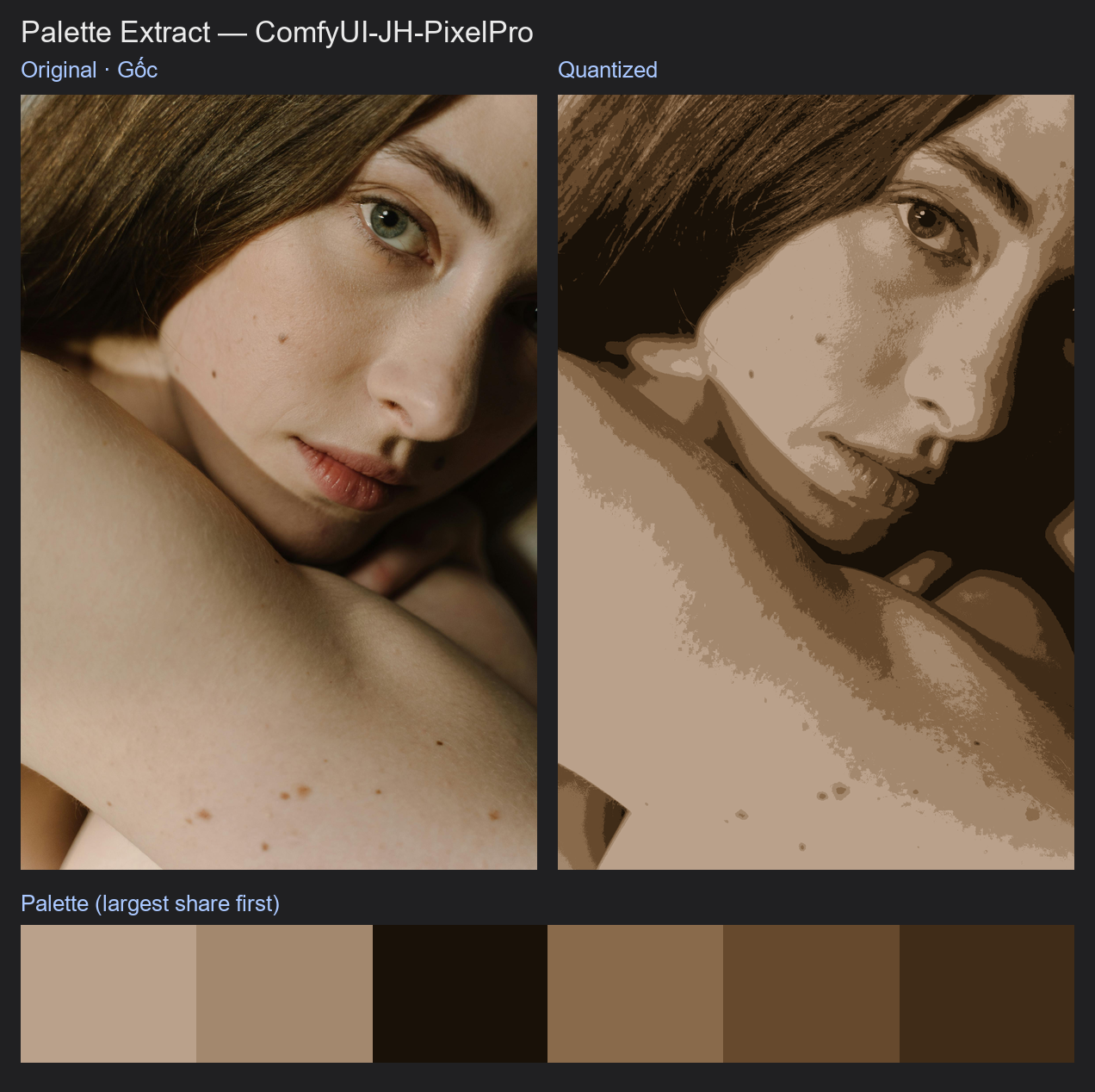
Pulls the dominant colours out of an image, the way you would pick swatches with the eyedropper. You get a swatch strip, the colour codes as text, and a posterized copy of the picture.
| In ComfyUI | Add Node → ComfyUI-JH-PixelPro → color → Color: Palette Extract |
| Good for | Building a colour palette from a reference photo, checking a colour grade, a flat-colour (posterize) look, feeding hex codes to other tools |
When to use it
Use it when you want to know "what colours is this picture really made of?". It groups similar pixels together using CIE LAB, a colour space built around how the eye sees differences, so the groups match what you would call "one colour". Dark and bright versions of a similar hue stay separate when they look different.
Colours are sorted by share, biggest first. The share tells you how much of the picture (or of the masked area) each colour covers.
Quick start
- Load Image → Color: Palette Extract → Preview Image on the
paletteoutput. - Set
colorsto 5 or 6 to start. - Optional: connect a subject mask to
maskso the background does not take over the palette. - Send
palette_jsonto a text display or save node to keep the hex codes.
Settings
| Setting | Default | What it does | Tip |
|---|---|---|---|
colors |
6 | How many colours to find (2 to 16). | 4 to 8 reads well for portraits. More colours means finer shades. |
mask (optional) |
none | Only pixels inside the mask (value above 0.5) count towards the palette and the shares. | Use a subject or skin mask. If one image in a batch has an empty mask, that image uses its whole frame (a warning is logged) instead of failing the batch. |
Outputs
| Output | What it is |
|---|---|
palette |
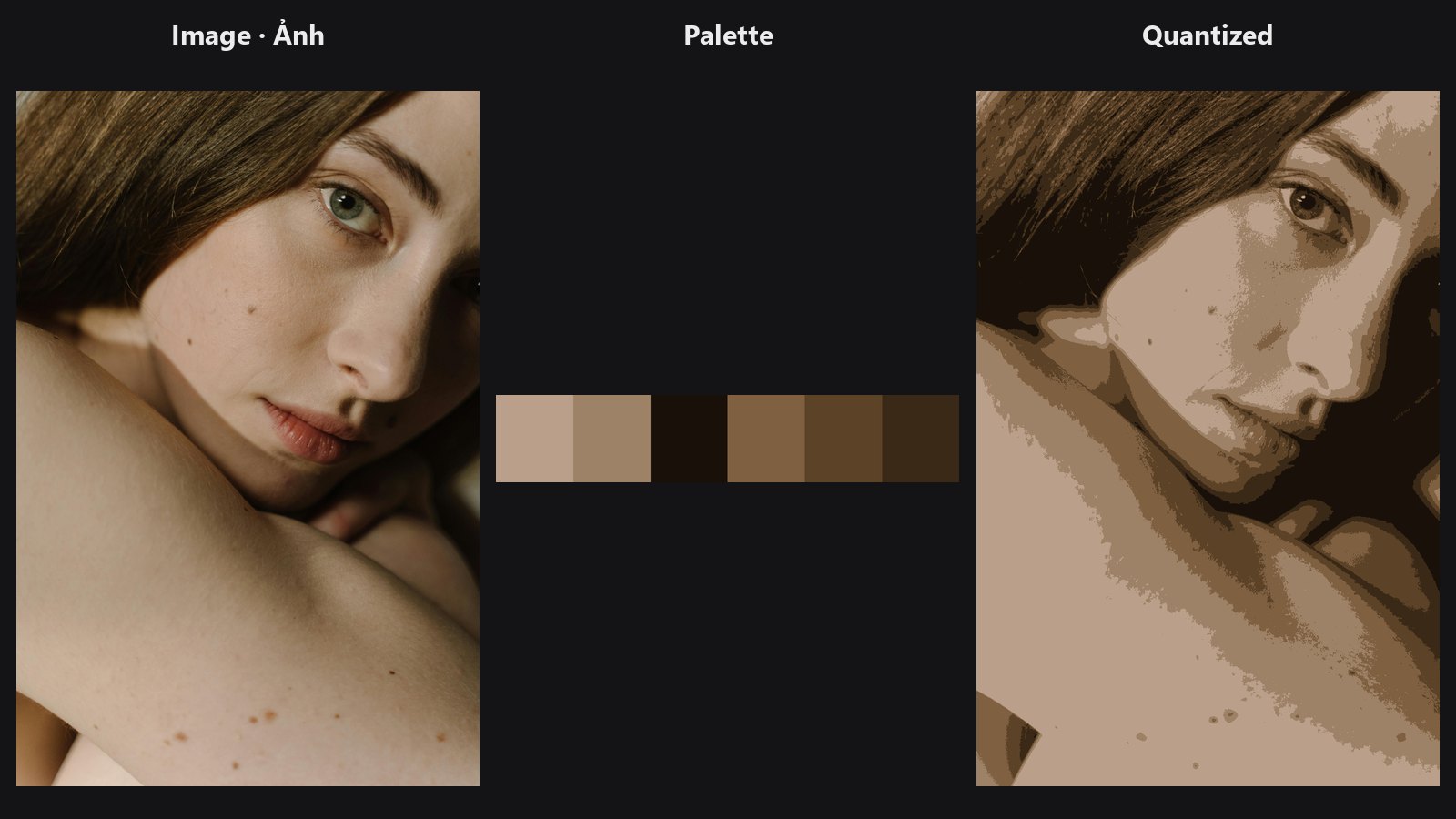
A 1024 × 192 swatch strip with one equal-width band per colour, biggest share on the left. |
palette_json |
Text list like [{"hex": "#c8a58b", "rgb": [200, 165, 139], "share": 0.31}, …], largest share first. With a batch of one image this is a flat list; with a batch of several images it is a list of lists, one per image. |
quantized |
Your image with every pixel replaced by its nearest palette colour (a posterized, flat-colour look). It always covers the whole frame, even when a mask is used. |
Tips from retouching
- Use
colors2 or 3 to see the main colour split of a grade, such as warm skin versus cool shadows. - Mask the subject first, otherwise a big sky or backdrop uses up most of the colours.
- The result is the same every time for the same image and settings.
- Compare two versions of an edit by extracting palettes from both and comparing the hex codes.
- Chain
quantizedinto Color Matcher or view it next to the original for a quick look at the tonal structure.
Under the hood
The image is converted to CIE LAB (Kornia). K-means++ seeding and 25 Lloyd iterations run on a random subsample of at most 200,000 pixels (fixed seed 0, so results repeat). Then every pixel (or every masked pixel for the shares) is assigned to its nearest centre in chunks of about one million pixels, so memory stays small. Centres are converted back to sRGB and rounded to 8 bits; the same rounded values drive the strip, the JSON and quantized. If the image has fewer distinct colours than colors, the extra entries have a share of 0. Source: core/palette.py.
Related nodes
- Color Matcher to push one image's colours towards another
- Skin Tone Tri-Region for per-region skin tone work
- Mask Combine to build the subject mask
Example workflow
Palette Extract example workflow pulls 6 colours from the portrait and shows the strip, the HEX list and the quantized image. It uses only core ComfyUI nodes and this pack. Copy workflows/sample_portrait.jpg into ComfyUI/input/.