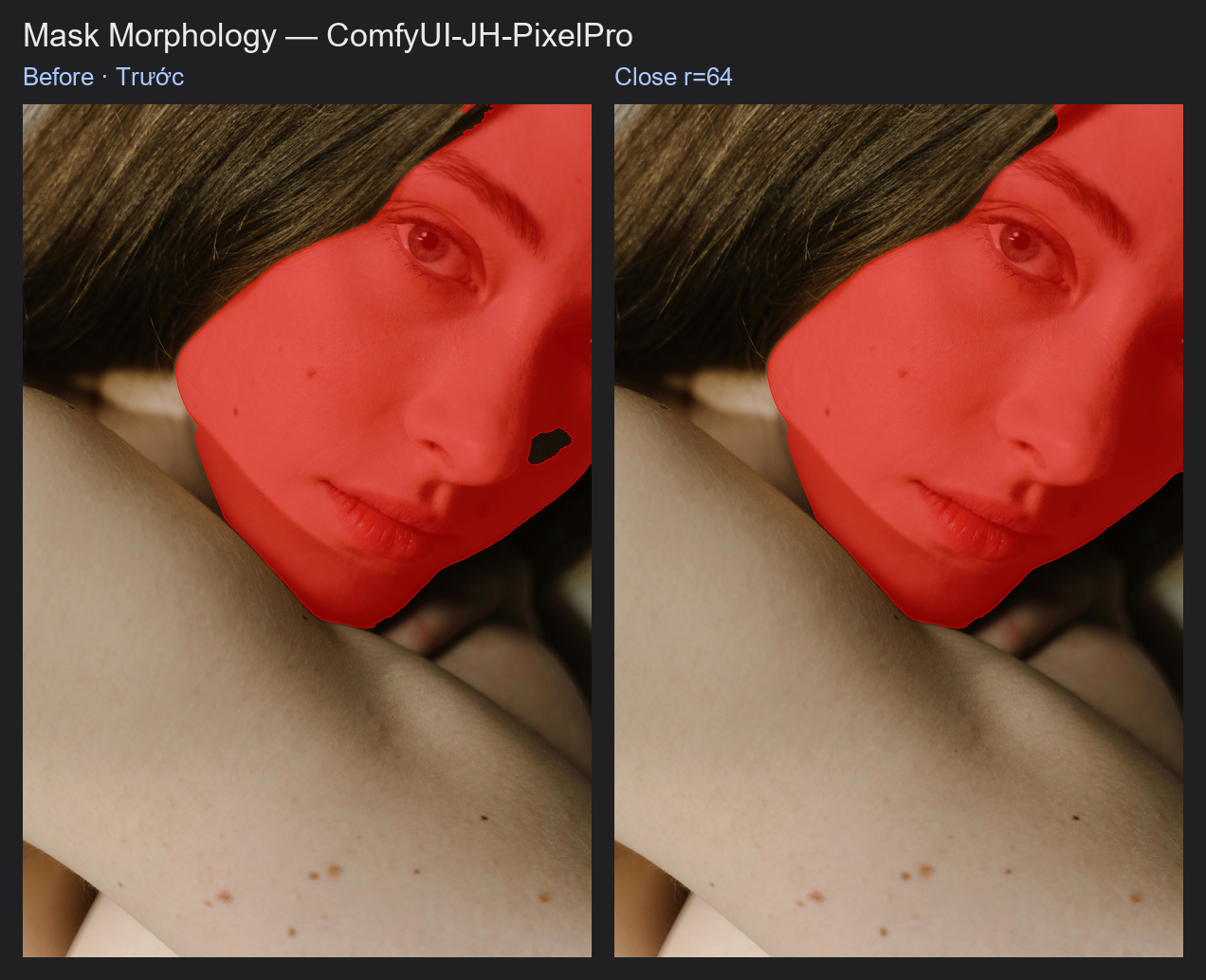
Mask Morphology
Grow a mask, shrink it, fill small gaps, remove thin spurs, or extract just its outline. It is the mask version of Photoshop's Select → Modify → Expand / Contract.
| In ComfyUI | Add Node → ComfyUI-JH-PixelPro → mask → Mask: Morphology |
| Good for | Expanding a mask to cover halos, contracting to remove a fringe, closing small holes, making an edge band |
When to use it
Morphology changes the shape of a mask rather than its softness. The idea is to slide a small round "brush" (the kernel) across the mask edge. Seven operations are available:
| Operation | What happens | Typical use |
|---|---|---|
dilate |
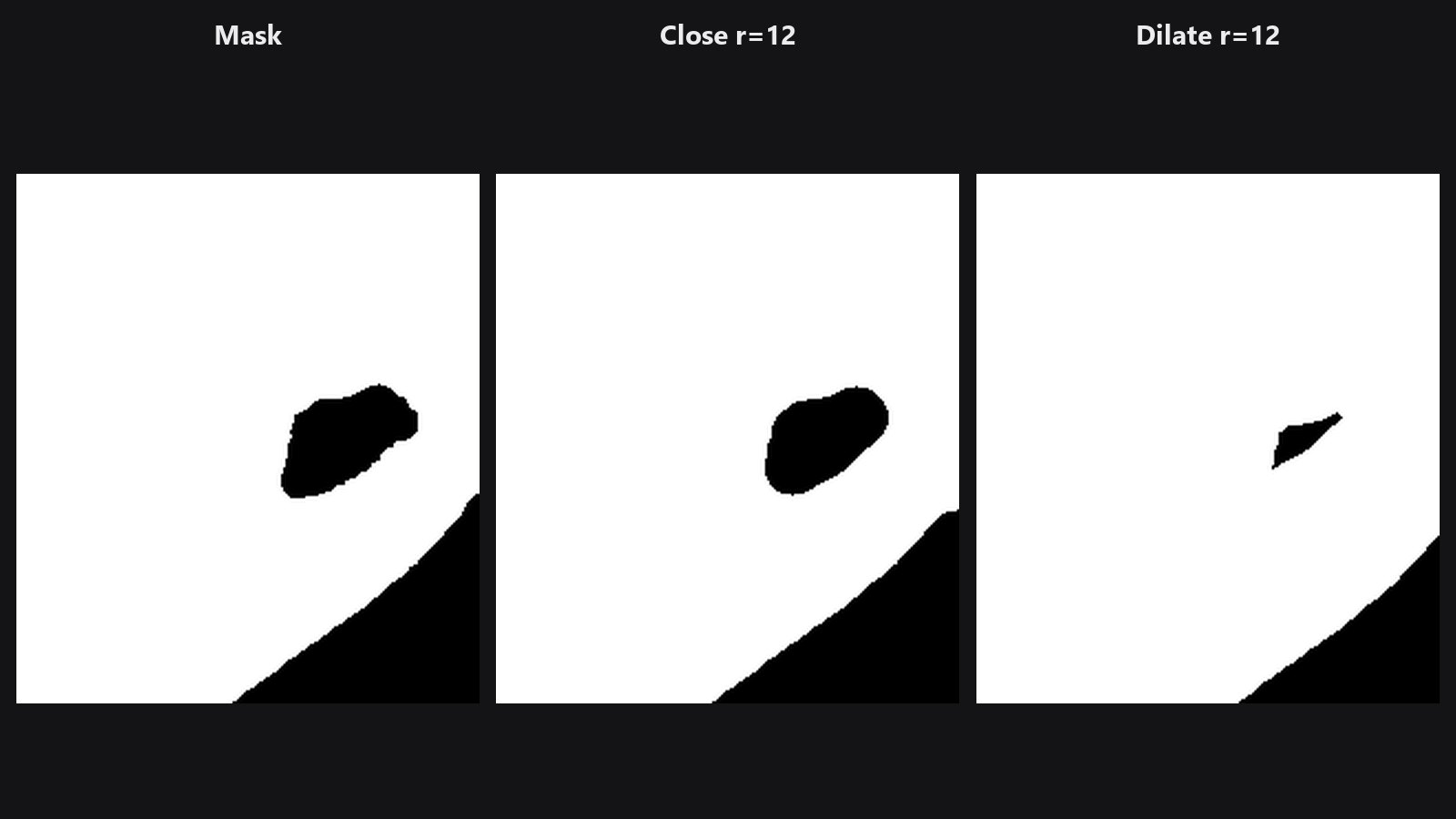
Mask grows outward | Cover a halo; make room for a feather |
erode |
Mask shrinks inward | Remove a coloured fringe at the edge |
open |
Erode, then dilate | Delete small white specks and thin spurs |
close |
Dilate, then erode | Fill small black holes and gaps |
gradient |
Dilated minus eroded | An outline band around the edge |
tophat |
Original minus open |
Keeps only the small bright bits that open would remove |
blackhat |
close minus original |
Keeps only the small dark gaps that close would fill |
For removing specks or holes by their size (rather than by brush radius), Mask Cleanup is easier to control.
Quick start
- Connect any mask to Mask Morphology.
- Pick
erodewithradius3 to shrink the selection and trim an edge fringe, ordilateto expand it. - Preview with Mask Preview.
Settings
| Setting | Default | What it does | Tip |
|---|---|---|---|
operation |
dilate |
Which of the seven operations to run. | See the table above. |
radius |
3 | Radius of the round kernel, in pixels. | 1 to 64. Roughly how many pixels the edge moves. |
iterations |
1 | How many times to repeat the operation. | 1 to 10. For big changes, a larger radius is usually cleaner than many iterations. |
Output: mask (MASK).
Tips from retouching
- To make a feathered ring around the edge, run
gradient, then soften it with Mask Edge Smoother or Sub-Pixel Mask Refiner. - After
dilateorerode, the edge can look jagged. Finish with a feather. - Use
closebefore building a Trimap if your mask has pin-holes. - Morphology also works on soft masks: it grows and shrinks the grey values (a grayscale dilate takes the local maximum).
Under the hood
An elliptical structuring element of size 2 * radius + 1 is built with cv2.getStructuringElement. dilate and erode call cv2.dilate and cv2.erode; the other operations use cv2.morphologyEx. It runs on the CPU in float32, one batch item at a time, and the result goes back to the input device. Source: core/mask_morphology.py. For very large radii on the GPU, avoid kornia.morphology; it uses a lot of memory.
Related nodes
- Mask Cleanup for removing specks and holes by size
- Mask Combine to merge the result with another mask
- Trimap Builder for three-zone maps
- Mask Edge Smoother to smooth the result
Example workflow
Mask Morphology example workflow. Copy workflows/sample_portrait.jpg and workflows/sample_binary_mask.png into ComfyUI/input/. It runs close at radius 64 to seal the small shadow gap by the nose without growing the outline. It uses only core ComfyUI nodes and this pack.