Layer Add
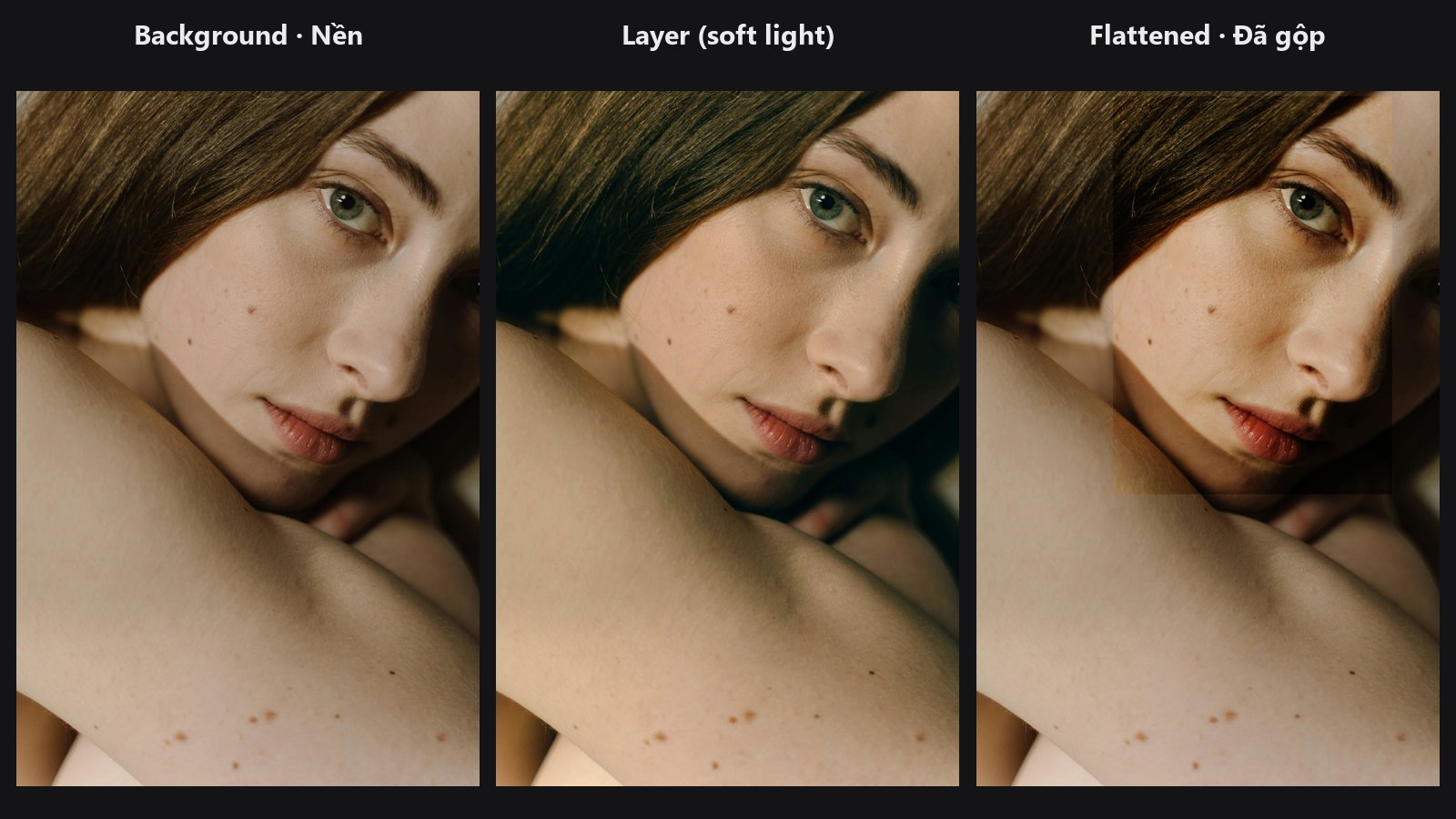
Adds one layer to a layer stack, the way you would drop a new layer into Photoshop: pick a blend mode, set opacity and fill, optionally add a mask, and optionally clip it to the layer below.
| In ComfyUI | Add Node → ComfyUI-JH-PixelPro → compositing → Compositing: Layer Add |
| Good for | Colour grades, light leaks, dodge-and-burn layers, texture overlays, local tints through a mask |
When to use it
Use it for finishing composites that should be repeatable and adjustable. Each Layer Add node is one layer. Chain several to build a stack from bottom to top: the first one you add sits directly above the background, the next one above that, and so on.
How the stack works:
- Layer Stack Start creates the background layer.
- Layer Add appends layers on top, each with its own blend mode, opacity, fill, mask and clipping.
- Layer Group can nest a whole sub-stack as a single layer.
- Layer Flatten merges everything into one image.
Quick start
Load Image→ Layer Stack Start.- Stack output → Layer Add
stack. Plug the image you want on top intolayer_image. - Try
blend_mode = soft_lightandopacity = 0.5. - Add more Layer Add nodes if you need them, then finish with Layer Flatten →
Preview Image.
Settings
| Setting | Default | What it does | Tip |
|---|---|---|---|
stack |
— | The stack to add to. | From Layer Stack Start or another Layer Add. |
layer_image |
— | The image to place on top. | Resized to the background size if it differs. |
blend_mode |
normal |
How this layer mixes with everything below it. | See the list below. |
opacity |
1.0 (0 to 1) |
Overall strength of the layer. | Start at 0.3 to 0.6 for grades. |
fill |
1.0 (0 to 1) |
A second strength control. | Multiplies with opacity. |
clip_to_below |
off | Limits the layer to the mask of the layer directly below. | Only has an effect if that layer has a layer_mask. |
layer_mask (optional) |
none | Where the layer shows: white = fully, black = not at all. | Resized to the canvas if needed. |
Output: LAYER_STACK, the stack with your new layer on top.
Blend modes
All 27 modes in core/blend_modes.py, grouped like the Photoshop menu:
| Group | Modes |
|---|---|
| Normal | normal, dissolve |
| Darken | darken, multiply, color_burn, linear_burn, darker_color |
| Lighten | lighten, screen, color_dodge, linear_dodge, lighter_color |
| Contrast | overlay, soft_light, hard_light, vivid_light, linear_light, pin_light, hard_mix |
| Comparative | difference, exclusion, subtract, divide |
| Colour | hue, saturation, color, luminosity |
dissolve works like Photoshop: each pixel becomes either fully the layer or fully the base, with a chance equal to opacity × fill × mask. It does not blend colours. The pattern uses a fixed seed, so the same settings always give the same result.
Tips from retouching
- Soft Light or Overlay at low opacity is the quickest way to add contrast or a colour wash without clipping.
- Multiply darkens, Screen lightens: use them with a blurred mask for dodge-and-burn style work.
- Color applies only the hue and saturation of the layer, which is handy for tinting skin without changing brightness. Luminosity does the opposite.
- Feed a mask from the Mask nodes (for example Luminosity Masking) into
layer_maskto limit a grade to the highlights or shadows. - Use
clip_to_belowto keep a layer inside the masked area of the layer under it.
Under the hood
Layers are rendered in order. The blend result is computed from the running image and the layer image (both clamped to 0..1), then mixed back with lerp using alpha = mask × opacity × fill, so opacity and fill behave the same here. dissolve is the exception: alpha is used as the probability that a pixel is taken fully from the layer, using a fixed-seed random value per pixel. A missing mask counts as all white. With clip_to_below, the layer's mask is multiplied by the mask of the layer below; a layer below without a mask counts as white, so clipping changes nothing in that case. Layer images and masks are resized bilinearly to the background size. The hue, saturation, color and luminosity modes are computed in HSV, so they can differ slightly from Photoshop's versions. Source: nodes/layer_compositing.py and core/blend_modes.py.
Related nodes
Example workflow
- Layer compositing: 2-layer overlay
- Layer compositing: 5-layer cinematic grade
- Layer compositing: group and clipping
Copy workflows/sample_portrait.jpg into ComfyUI/input/ first.