CLAHE Local Contrast
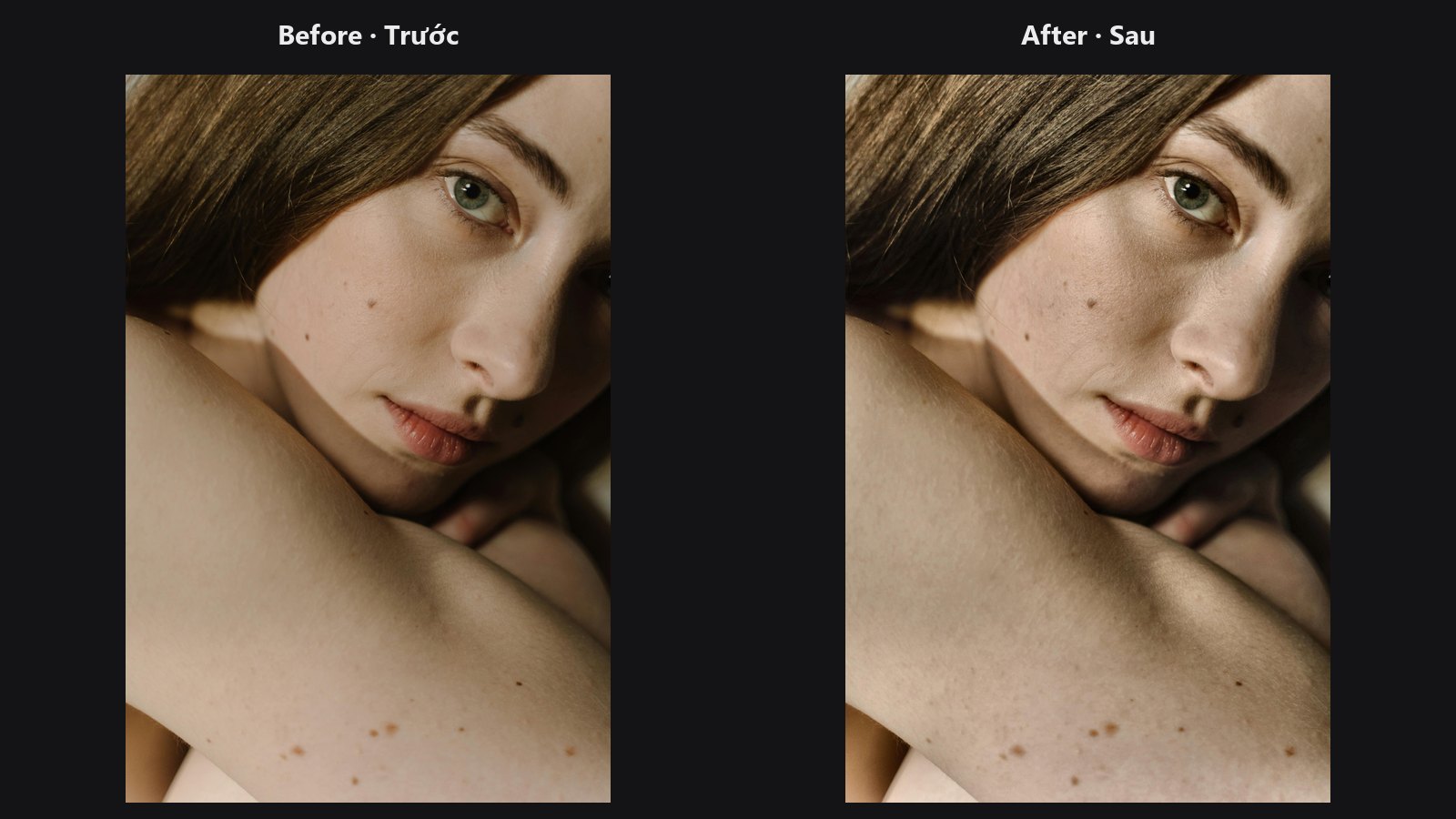
Opens up dark areas and adds definition to flat ones by adjusting contrast tile by tile, on lightness only, so hue and colour do not shift.
| In ComfyUI | Add Node → ComfyUI-JH-PixelPro → color → Color: CLAHE Local Contrast |
| Good for | Lifting murky shadows, rescuing hazy or flat shots, adding crunch to product and texture detail |
When to use it
CLAHE (Contrast Limited Adaptive Histogram Equalisation) looks at small tiles of the picture and spreads out the brightness values inside each one, with a limit so noise is not blown up. The result feels like strong local contrast: dark corners gain detail and flat surfaces gain depth.
Here it runs only on the lightness channel of the CIE LAB colour space, so colours are not touched. Running it on RGB channels, as many tools do, shifts colours and tints skin.
Compared with the basic_clarity slider in ColorLab: clarity is a gentle, radius-based punch for edges. CLAHE redistributes brightness inside each tile, so it can lift deep shadows and flatten large soft gradients that clarity leaves alone. Use clarity for gentle punch, CLAHE when a region is too flat, too dark or too hazy.
Quick start
- Load Image → CLAHE Local Contrast → Preview Image.
- Leave
clip_limitat 2.0 andgrid_sizeat 8. - Lower
strengthto about 0.5 for portraits, then compare with the original.
Settings
| Setting | Default | What it does | Tip |
|---|---|---|---|
image |
required | The picture to enhance. | |
clip_limit |
2.0 (0.1 to 40) | How strongly each tile may be stretched. Higher means more contrast and more noise. | 1.5 to 3 for most work; above about 6 grain jumps out. |
grid_size |
8 (2 to 32) | Number of tiles across and down. Fewer tiles give a broad, natural lift; more tiles give a crunchy, detailed look. | 4 to 6 natural, 12 to 24 gritty. |
strength |
1.0 (0 to 1) | Blend between the original (0) and the CLAHE result (1). | 0.3 to 0.6 for portraits. |
mask (optional) |
none | Limits where the effect applies. A single mask is used for the whole batch. | Keep faces or skies out of the effect. |
Output: image, the enhanced picture.
On small images the grid is reduced automatically so that every tile is at least 80 px wide. Images smaller than 80 px come back unchanged.
Tips from retouching
- Start gentle.
clip_limit2 atstrength0.5 is often better than 4 at full strength. - For portraits, mask out the face and apply it to clothing, hair or background only; skin rarely likes this much local contrast.
- If shadows turn grainy, lower
clip_limitfirst, thenstrength. - Combine with Smart Sharpen afterwards for crisp edges, and apply Tone Curve last for the final contrast shape.
- Flat colour areas stay flat, so solid backgrounds do not get tinted.
Under the hood
The image is converted to CIE LAB (Kornia). Only L* (divided by 100) goes through kornia.enhance.equalize_clahe on a grid_size × grid_size tile grid; the original a* and b* are kept, the result is converted back to RGB and clamped to 0..1. The final image is lerp(original, enhanced, strength × mask). Kornia works with 256-bin histograms, so L* is quantised to 256 levels. Its clip threshold biases very small tiles (a flat image can drift brighter), which is why tiles are kept at 80 px or more. strength = 0 returns the original.
Related nodes
- ColorLab: clarity, texture and dehaze in a Camera Raw style panel
- Smart Sharpen: edge sharpening after the contrast lift
- Tone Curve: shape global contrast
- Luminosity Masking: restrict the effect to shadows or highlights
Example workflow
CLAHE Local Contrast example workflow. Copy workflows/sample_portrait.jpg into ComfyUI/input/ first.