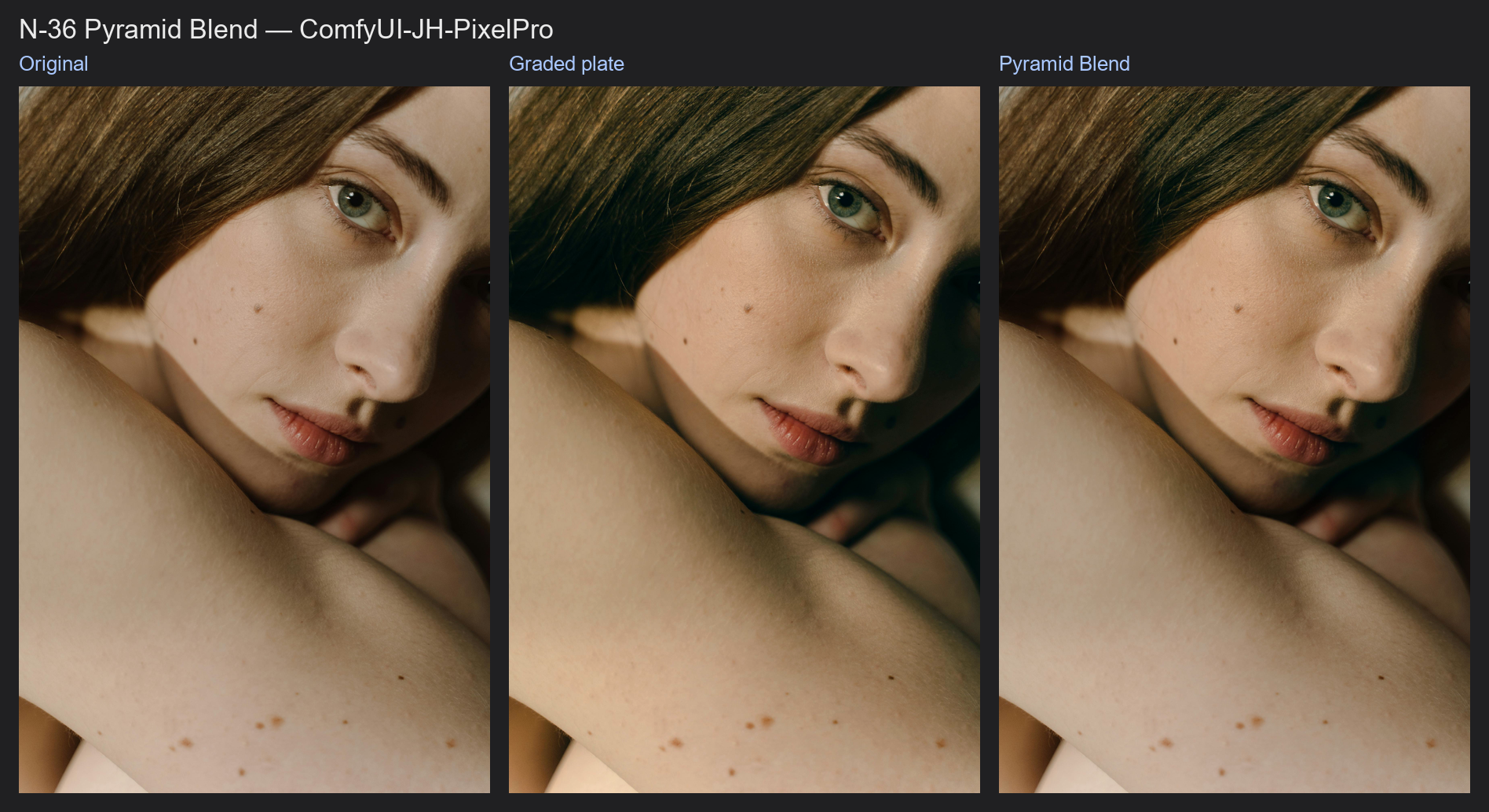
Pyramid Blend
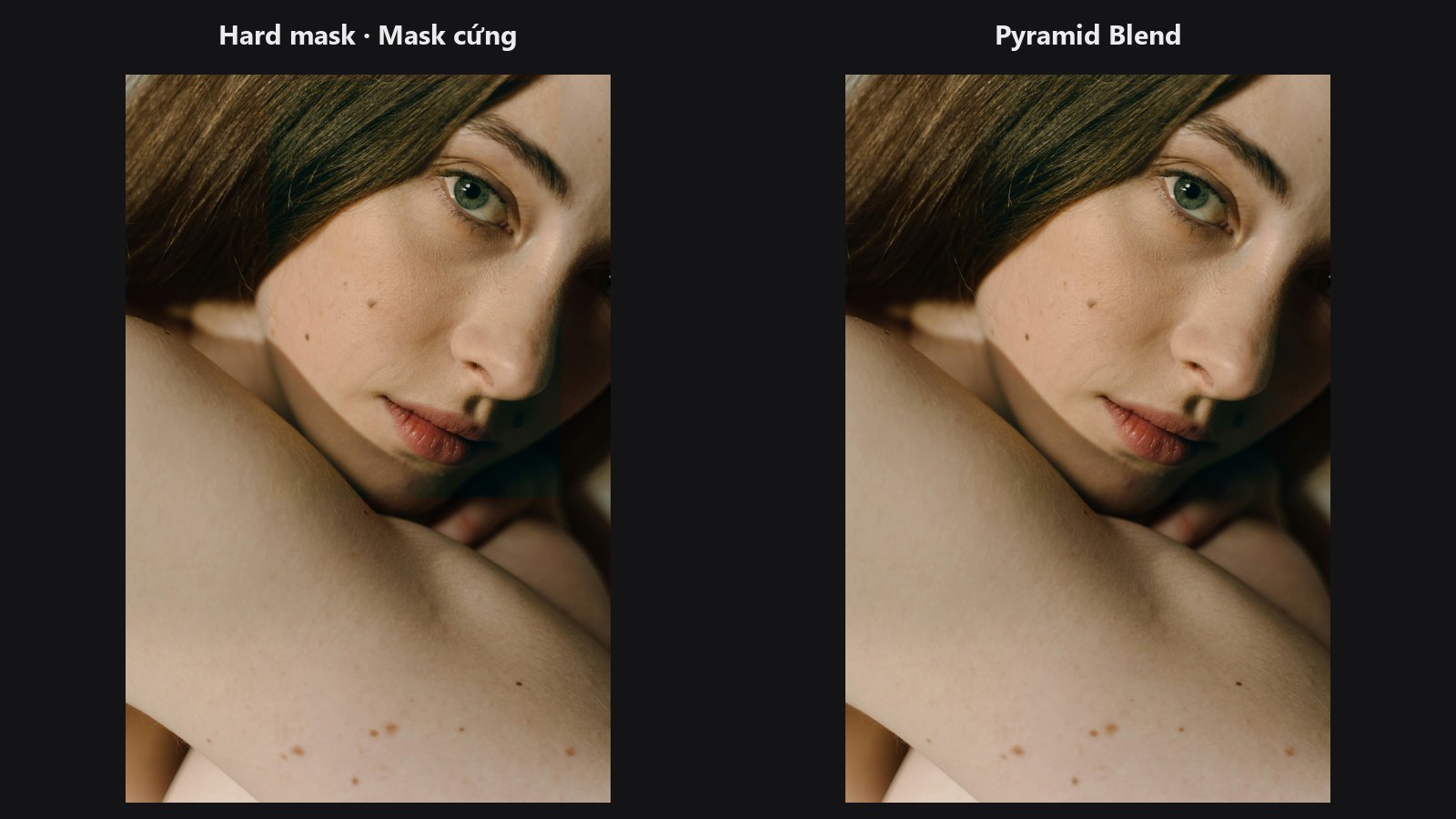
Composites one image over another through a mask and hides the seam. Fine detail switches over sharply while colour and exposure fade over a wide area, so you do not see a hard edge or a brightness step.
| In ComfyUI | Add Node → ComfyUI-JH-PixelPro → compositing → Compositing: Pyramid Blend |
| Good for | Pasting a graded or retouched face back into a photo, object and face swaps, stitching two exposures |
When to use it
A plain mask composite shows its edge whenever the two images differ in brightness or colour. This node splits both images into detail bands (a Laplacian pyramid, the classic Burt-Adelson method) and blends each band separately: fine bands use a narrow transition, coarse bands a wide one. The seam blends in without ghosting.
Choose it over Layer Add with a mask when the two images do not match perfectly at the edge.
Quick start
- Put the base photo in
image_aand the edited version (or the other photo) inimage_b. They must have the same size. - Connect a
MASKtomask: white takesimage_b, black keepsimage_a. - Leave
levelsat5, then raise it if a seam is still visible. Preview Image.
Settings
| Setting | Default | What it does | Tip |
|---|---|---|---|
image_a |
— | Base image, kept where the mask is 0. | |
image_b |
— | Overlay image, taken where the mask is 1. | |
mask |
— | Where image_b replaces image_a. |
A hard mask is fine; the pyramid does the feathering. |
levels |
5 (1 to 10) |
Pyramid depth. More levels give a wider, smoother transition. | 1 is a plain alpha composite. Try 4 to 6 first. |
Output: image, the blended picture (IMAGE).
All three inputs must share the same height and width. A batch of 1 on any input is reused for the others.
Tips from retouching
- Use fewer levels (1 to 3) for a tight edge, more (7 to 10) to hide big exposure or colour differences.
- If you see colour halos around the seam, lower
levels. - Make the mask first with Mask Cleanup or Edge-Aware Mask Refiner for a clean cut-out shape.
- Grade the face with a LUT first (LUT Preset), then blend it back through a face mask.
Under the hood
Both images get a Laplacian pyramid (band-pass layers plus a low-pass residual) and the mask gets a Gaussian pyramid, built with Kornia pyrdown / pyrup. Each band is blended as band_a × (1 − mask) + band_b × mask, then the pyramid is collapsed. Images are replicate-padded to a multiple of 2 ** (levels - 1) and cropped back, so any size works. The depth is lowered automatically so the smallest level stays at least 8 px on its short side. Identical inputs, an all-0 mask or an all-1 mask return the source unchanged. Source: core/pyramid_blend.py.
Related nodes
Example workflow
Pyramid Blend example workflow. Copy workflows/sample_portrait.jpg into ComfyUI/input/.