Heal / Content-Aware Fill
Paint a mask over something you want gone, such as a wire, a blemish, a logo or a stray object. The node fills the hole with texture and structure taken from nearby, like Content-Aware Fill in Photoshop.
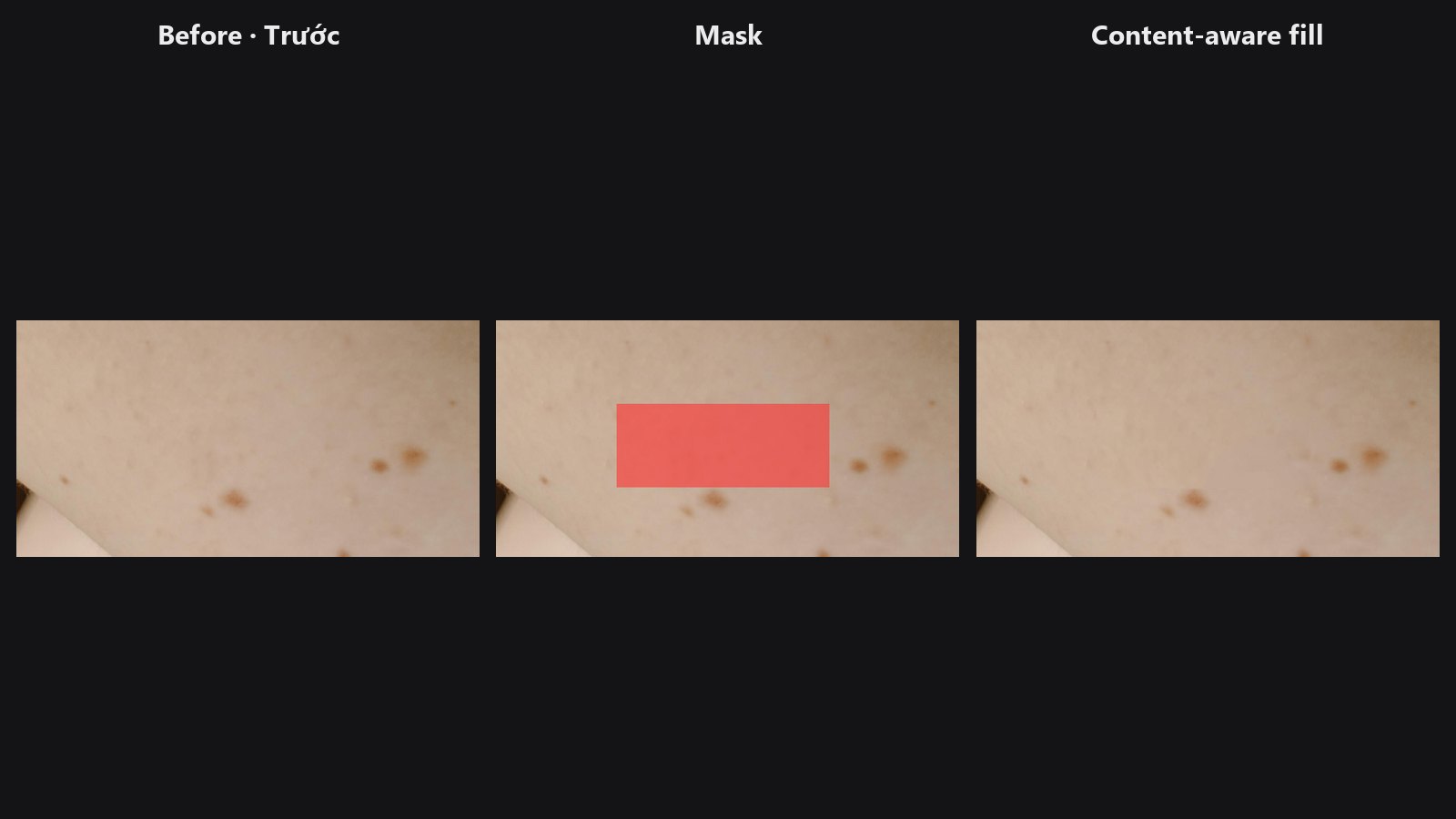
| In ComfyUI | Add Node → ComfyUI-JH-PixelPro → filters → Filters: Heal / Content-Aware Fill |
| Good for | Wires and poles, skin marks and scars, small objects on grass, sky or walls, logos on flat surfaces |
| Speed | On a GPU, 1 to 3 s for typical masks on an 8 MP photo, under 1.1 GB VRAM at 4K. On a CPU it is much slower: about 25 s for a 400 px hole at 4K. |
When to use it
A clone stamp copies one patch by hand. This node does the search for you: for every pixel inside the hole it looks for the most similar patches in the area around it, then blends them so grain, pores and grass blades continue into the filled area.
It works best on texture: skin, sky, grass, sand, walls. Complex structure is harder. Arches, text and faces can come out broken. For those, mask generously and try a larger context, or retouch by hand afterwards.
Mask parts that are far apart are healed separately, so scattered spots are fine. The result is the same every time you run it.
Quick start
- Load Image and a mask (paint it in the Mask Editor, or build one with other mask nodes). White means remove and fill.
- Connect both to Filters: Heal / Content-Aware Fill and add a Preview Image.
- Keep
modeoncontent_aware. Usesmoothonly on flat, textureless areas. - If the fill looks wrong, make the mask a bit larger, or raise
contextto 2.
Settings
| Setting | Default | What it does | Tip |
|---|---|---|---|
image |
The photo to retouch. | ||
mask |
White = remove and fill. | Cover the object and its shadow or halo. | |
mode |
content_aware |
content_aware rebuilds texture and structure from nearby patches. smooth is a soft colour fill with no texture. |
smooth is for flat areas such as a clean sky or studio backdrop. |
grow |
2 | 0 to 64 px. Adds this many pixels around the mask. | Raise it to catch halos and soft shadows. |
feather |
1.5 | 0 to 32 px. Soft blend outside the mask edge. | Raise it on smooth gradients. Keep it low on detailed texture. |
context (optional) |
1.0 | 0.25 to 8. How far around each mask part to search, as a multiple of its size. | Raise it when the right texture is far away from the hole. |
Output
| Output | What it is |
|---|---|
image |
The photo with the masked area filled. |
Tips from retouching
- Mask a little too much rather than too little. Leftover edges of the object are the most common reason a fill looks wrong.
- For a long wire across the sky, a thin mask with
grow3 to 6 is usually enough. - Several separate marks in one mask are fine. Each part is healed on its own, with its own search area.
- If a fill repeats an unwanted pattern, lower
contextso the search stays near the hole. If it lacks the right texture, raise it. - For freckles or pimples on a face, Auto Blemish finds them for you. To remove sensor dust, use Dust & Spot Removal.
Under the hood
content_aware is exemplar-based completion (Wexler, Shechtman and Irani, 2007) with a parallel PatchMatch search. The hole is filled from coarse to fine over an image pyramid. At each level, every pixel whose 7x7 patch touches the hole looks for the most similar fully known patch nearby. Each hole pixel then becomes a weighted vote of the overlapping source patches.
Only the area around each mask part (its bounding box plus a margin set by context) is processed, and memory grows with that area only. The feather band is filled too and blended from opaque at the mask edge to the original at its outer edge. The search uses a fixed random seed, so results repeat exactly.
smooth fills by normalised convolution of the surrounding colours. Source: core/heal.py, wrapper nodes/heal_node.py.
Related nodes
- Auto Blemish: finds and heals skin marks on faces automatically
- Dust & Spot Removal: finds sensor dust and small spots by itself
- Mask Morphology: grow, shrink or clean your mask first
- Mask Preview: check what the mask covers
Example workflow
Heal example workflow removes a cluster of freckles on an arm and a mole on a cheek. Copy workflows/sample_portrait.jpg and workflows/sample_heal_mask.png into ComfyUI/input/ (photo: Pexels License).