Defringe
Removes the purple or green outlines that appear along branches, backlit edges and chrome, and the red and cyan outlines toward the corners. Only the fringe pixels change. The rest of the picture stays as it was.
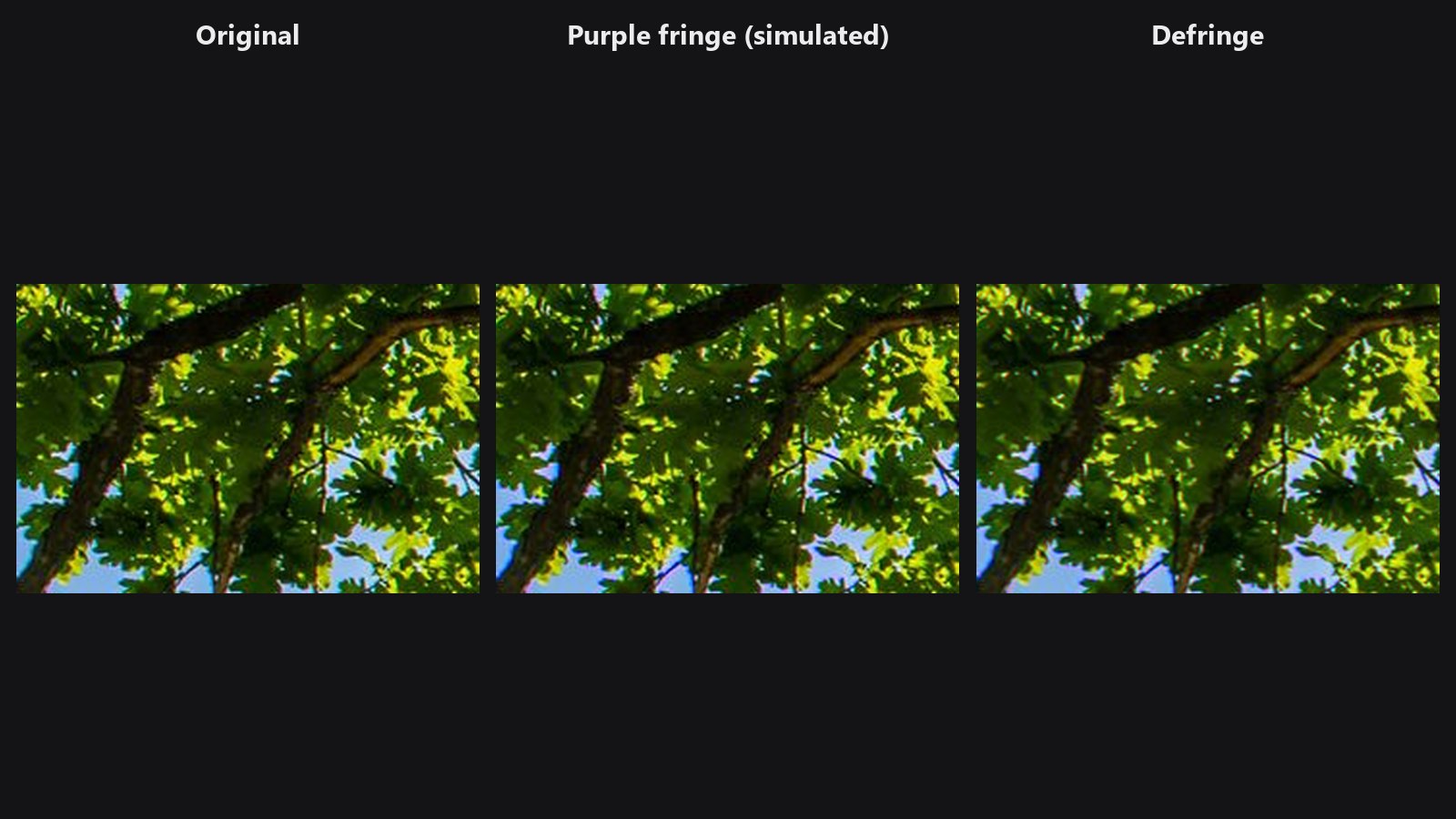
Note
The purple fringe in this example image was simulated on a sample photo, so you can see the effect clearly. Real fringes look similar but vary by lens.
| In ComfyUI | Add Node → ComfyUI-JH-PixelPro → color → Color: Defringe |
| Good for | Backlit branches and leaves against the sky, bright windows, chrome and metal highlights, wide-open lens shots |
| Speed | 4K stays under 1 GB VRAM |
When to use it
Lenses focus colours slightly differently. That leaves two kinds of fringe:
- Purple (or green) fringe. A coloured halo along strong light-dark edges. Common with wide-open lenses and backlight.
- Lateral chromatic aberration. Red and blue are magnified slightly differently from green, so edges get red and cyan outlines that grow toward the corners.
Both are fixed here in one step. Lateral CA is lined up first, then the leftover coloured pixels along edges are pulled back to the colour next to them.
Quick start
- Load Image → Color: Defringe → Preview Image.
- Keep the defaults:
purple1,green0,lateral_caon. - Zoom in 100 % on a high-contrast edge and compare with the original.
- If green fringes remain on metal or glass, raise
greento 0.5.
Settings
| Setting | Default | What it does | Tip |
|---|---|---|---|
image |
Photo with coloured edges. | ||
purple |
1.0 | 0 to 1. How strongly purple and magenta fringes next to strong edges are removed. | Lower it if a real purple object loses colour at its edge. |
green |
0.0 | 0 to 1. How strongly green fringes are removed. Off by default. | Leaves seen against a bright sky can turn grey, so raise it only when green fringes are the problem. |
lateral_ca |
on | Lines up the red and blue planes with green. The shift is measured automatically on a 1024 px copy and only applied when it clearly lines the edges up. | Turn off if the lens was already corrected. |
radius (optional) |
0 | 0 to 32 px. Fringe width. 0 means automatic: 0.15 % of the long edge. | Raise it for wide fringes on very large files. |
Output
| Output | What it is |
|---|---|
image |
The photo with fringes removed. Same size as the input. |
Tips from retouching
- Defringe before you sharpen, so Smart Sharpen does not strengthen the fringes.
- If your raw converter already applied lens correction, turn
lateral_caoff and keep only the fringe removal. - Branches against the sky usually need only
purple. Addgreenfor a purple-and-green pair, and look at the leaves before and after. - Leave
radiuson 0 first. Change it only if you can still see a fringe after the automatic pass. - Geometric lens distortion is a different problem. Use Lens Distortion for that.
Under the hood
- Lateral CA. The red and blue planes are scaled about the image centre by the factor that best lines their edges up with green. The factor is found by correlating high-pass planes on a 1024 px copy, searched over about plus or minus 0.4 %. It is applied at full size only when the edge correlation improves clearly.
- Fringe removal. A fringe pixel has a purple (270 to 335 degrees) or green (75 to 165 degrees) hue, is clearly coloured, and lies within
radiusof a strong luminance edge. Its Lab a* and b* move toward the colour of the nearby non-fringe pixels. Lightness is kept, so the edge stays sharp. Only fringe pixels change.
The image is processed in strips, which keeps 4K under 1 GB of VRAM. Source: core/defringe.py, wrapper nodes/defringe_node.py.
Related nodes
- Lens Distortion: fix barrel and pincushion distortion
- Smart Sharpen: sharpen after the fringes are gone
- ColorLab: further colour work after defringing
- Decontaminate Colors: remove colour spill at the edge of a cut-out
Example workflow
Defringe example workflow runs a sample architecture photo through Defringe. The sample shows a mild red lateral CA. Copy workflows/sample_architecture.jpg into ComfyUI/input/ (Pexels License).