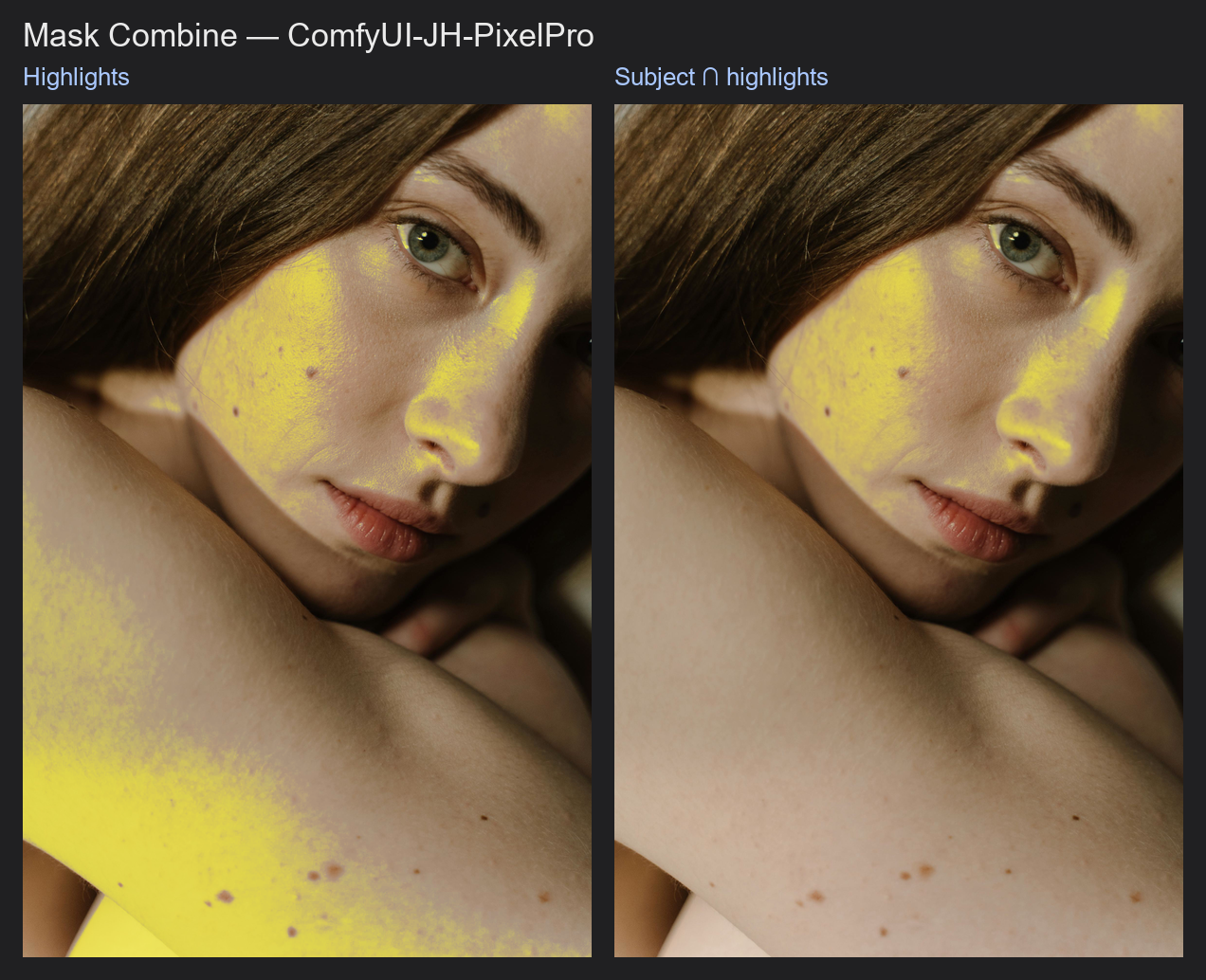
Mask Combine
Combine two masks into one: add them, cut one out of the other, keep only where they overlap, and more. Optionally feather both before combining.
| In ComfyUI | Add Node → ComfyUI-JH-PixelPro → mask → Mask: Combine |
| Good for | Adding a hand-painted area to an automatic mask, cutting eyes out of a skin mask, keeping the overlap of two selections |
When to use it
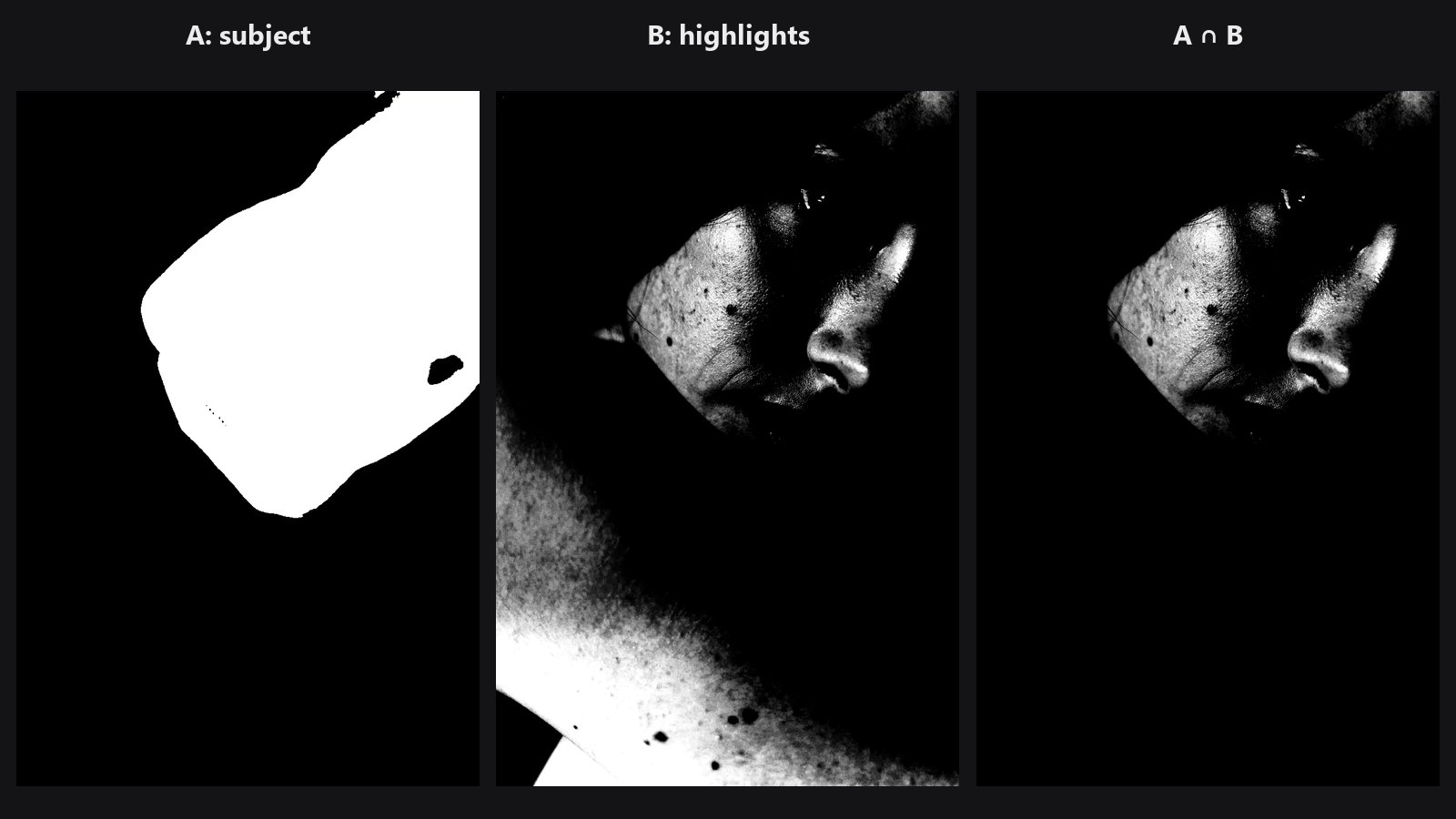
This is the mask version of Photoshop's selection modes: add to selection, subtract from selection, intersect with selection. mask_a is your base mask and mask_b is the one you apply to it.
| Operation | Result | Think of it as |
|---|---|---|
union |
Larger of the two values at each pixel | Add to selection (keeps soft edges) |
add |
a + b, clamped to 0..1 |
Add, with overlaps brightening |
subtract |
a - b, clamped |
Subtract B from A |
difference |
a * (1 - b) |
Cut B out of A, with soft edges respected |
intersect |
Smaller of the two values | Only where both overlap |
multiply |
a * b |
Overlap, with soft values blended |
xor |
Where only one of them is set | Everything except the overlap |
Quick start
- Connect your main mask to
mask_aand the second mask tomask_b. - Choose
operation. For "cut the eyes out of the skin mask", usedifferencewith the eyes asmask_b. - Leave
blend_modeonhardunless the edges need softening. - Check the result with Mask Preview.
Settings
| Setting | Default | What it does | Tip |
|---|---|---|---|
operation |
union |
How the two masks are combined. | See the table above. |
blend_mode |
hard |
hard uses the masks as they are. soft_feather blurs both masks first. |
Use soft_feather for a smooth blend between regions. |
opacity |
1.0 | Strength of the operation. 0 returns mask_a unchanged; 1 gives the full result. |
0 to 1. Lower it for a subtle edit. |
feather_sigma |
0.0 | Blur strength (pixels) used by soft_feather. |
0 to 64. Has no effect in hard mode. |
Output: mask (MASK).
Tips from retouching
- Order matters for
subtractanddifference:mask_bis removed frommask_a. - Both masks must have the same width and height. One of them can be a single-frame mask used for a whole batch.
- To soften only the result, combine with
hard, then feather with Mask Edge Smoother. - Combine a Luminosity Masking mask with a subject mask using
multiplyorintersectto adjust only the highlights on the subject.
Under the hood
Inputs are clamped to 0..1. In soft_feather mode both masks get a Gaussian blur (kernel = 2 * round(3 * sigma) + 1, replicate padding). The operation runs on the (possibly blurred) masks and is clamped; the final result is a * (1 - opacity) + combined * opacity. A batch of 1 is broadcast against a larger batch. Source: core/mask_combine.py.
Related nodes
- Mask Morphology to grow or shrink one input
- Mask Edge Smoother to soften the result
- Luminosity Masking for tonal masks to combine
- Mask Preview for checking the result
Example workflow
Mask Combine example workflow. Copy workflows/sample_portrait.jpg and workflows/sample_binary_mask.png into ComfyUI/input/. It intersects the subject mask with the Luminosity Masking highlights, with soft_feather on the edge, so only the bright parts of the subject stay selected. It uses only core ComfyUI nodes and this pack.