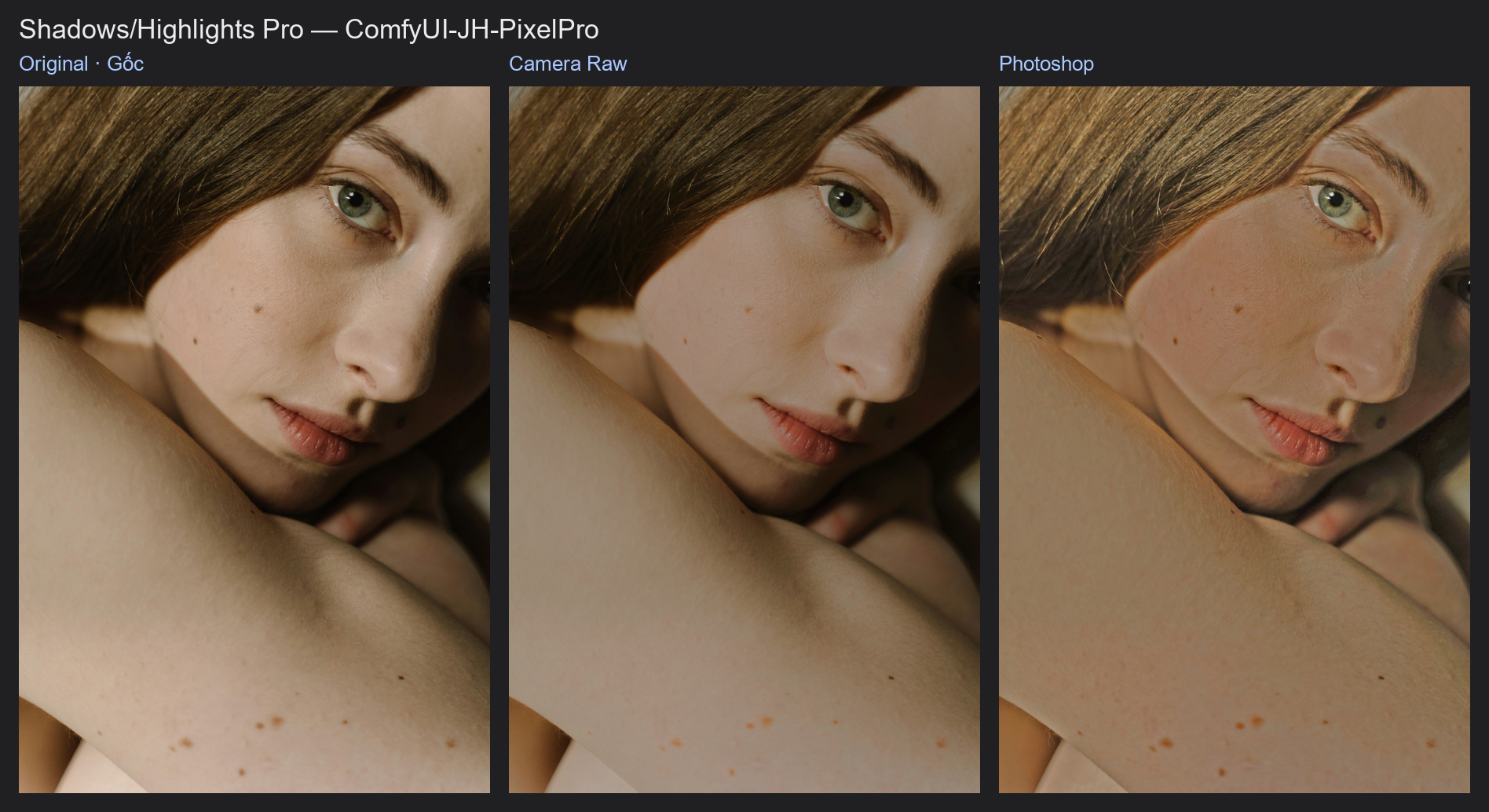
Shadows/Highlights Pro
Lifts the shadows and recovers the highlights of a picture without the flat, grey "cheap HDR" look. Choose between a Camera Raw–style model that leaves no halos and the classic Photoshop Shadows/Highlights dialog.
| In ComfyUI | Add Node → ComfyUI-JH-PixelPro → color → Color: Shadows/Highlights Pro |
| Good for | Backlit portraits, opening up dark faces and hair, taming bright skies and windows, cutting shine on skin |
| Speed | About 0.1 s per 4K image on a CUDA GPU after warm-up, peak VRAM under 1 GB. About 14 s at 4K on the CPU. |
When to use it
Use it when the light in a photo is right but the tonal range is too wide: a face in shade against a bright background, a dark jacket with no detail, or a sky that is almost white. A plain curve or exposure change moves every pixel; this node looks at each area's surroundings, so it lifts what is dark compared with its neighbourhood and calms what is bright, while keeping local contrast.
There are two models:
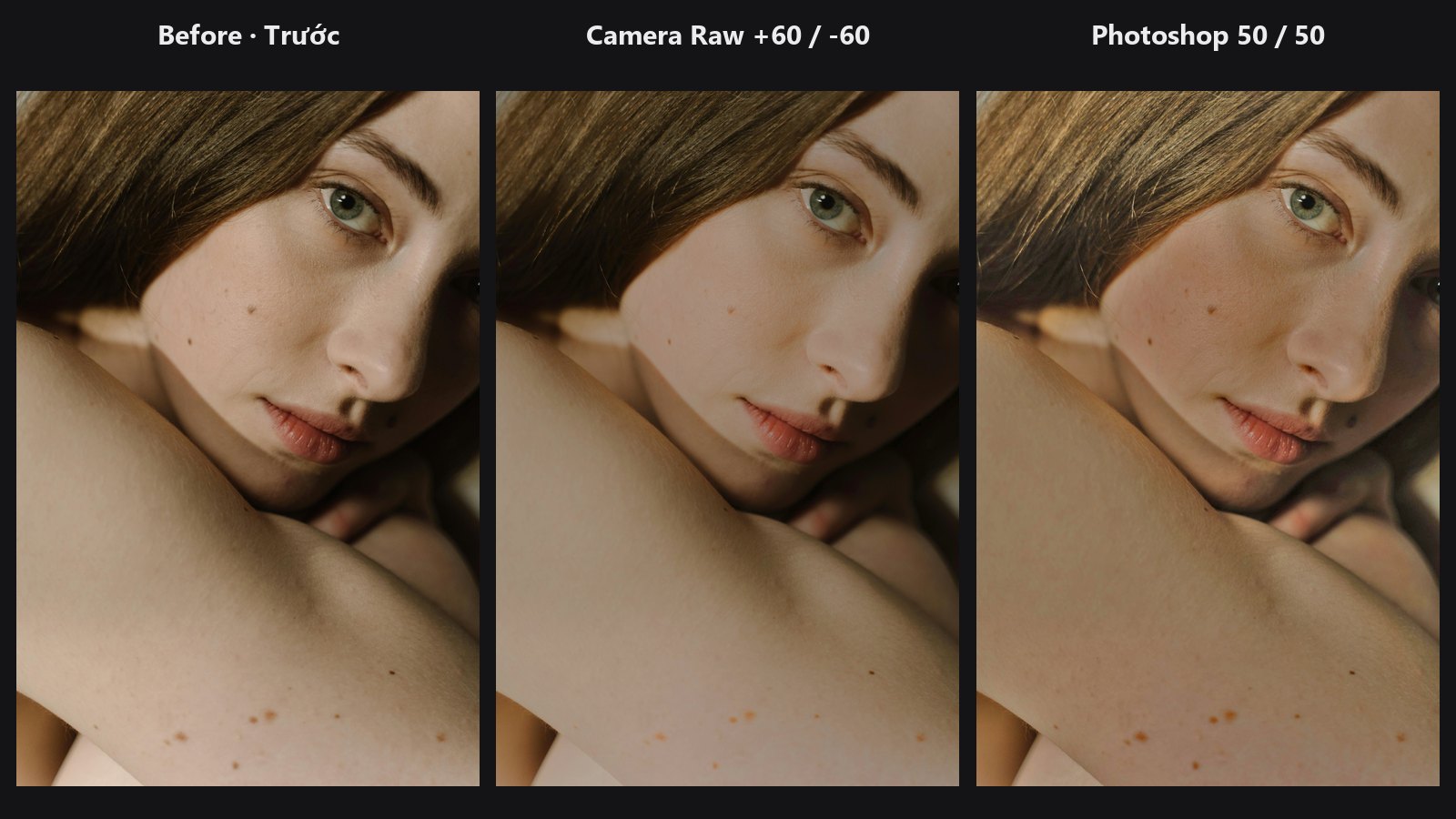
camera_rawworks like the Shadows and Highlights sliders in Lightroom / Camera Raw. Both sliders work in both directions, hard edges keep no halo (a bright or dark rim around objects), and colours are kept because only brightness is changed. On grey test charts it comes close to published Photoshop 25.4 Camera Raw measurements (Shadows +100: 165.2 against 165.3 of 255; Highlights -100: 90.4 against 89.6). Treat it as a close model, not an exact copy of Lightroom or Photoshop on every photo.photoshopfollows Image > Adjustments > Shadows/Highlights, with its Tone, Radius, Color and Midtone controls. Like the dialog, it can only lift shadows and darken highlights.
Quick start
- Load Image → Color: Shadows/Highlights Pro → Preview Image.
- Keep
modeoncamera_rawand start from the defaults (shadows30,highlights-30). - Raise
shadowsuntil the dark areas show detail; lowerhighlightsuntil the sky or skin shine looks right. - Optional: connect a mask to
maskto limit the change to the subject or the sky.
Settings
| Setting | Default | What it does | Tip |
|---|---|---|---|
shadows |
30 | -100 to 100. Positive lifts dark areas relative to their surroundings; negative deepens them (camera_raw only). |
20 to 50 for portraits; up to 100 for strong backlight. |
highlights |
-30 | -100 to 100. Negative recovers bright areas (skies, windows, skin shine); positive brightens them (camera_raw only). |
-20 to -60 for most photos. |
mode |
camera_raw |
camera_raw = Lightroom / Camera Raw style sliders, no halos. photoshop = the Image > Adjustments > Shadows/Highlights model. |
Start with camera_raw; use photoshop when you want the dialog's controls. |
mask (optional) |
none | Limits where the effect applies (1 = full effect, 0 = untouched, soft values blend). Must match the image size; a one-image mask applies to the whole batch. | Use a subject, sky or Luminosity Masking mask. |
ps_shadow_tone |
50 | Photoshop mode. Tonal width of the shadows (0–100 %): how far up the tones the shadow lift reaches. | Lower it to touch only the deepest shadows. |
ps_shadow_radius |
30 | Photoshop mode. Shadows neighbourhood size in pixels (0–2500). | Larger radius on large images; small values look more local and crunchy. |
ps_highlight_tone |
50 | Photoshop mode. Tonal width of the highlights (0–100 %). | Lower it to touch only the brightest areas. |
ps_highlight_radius |
30 | Photoshop mode. Highlights neighbourhood size in pixels (0–2500). | Same as the shadow radius. |
ps_color |
20 | Photoshop mode. Saturation in the adjusted tones (-100 to 100). | Raise it if lifted shadows look washed out; lower it if they look too colourful. |
ps_midtone |
0 | Photoshop mode. Midtone contrast (-100 to 100). | Small positive values bring back punch after a strong lift. |
The ps_ settings are ignored in camera_raw mode.
Output
| Output | What it is |
|---|---|
image |
The adjusted image, same size as the input. With both sliders at 0 it is the input, unchanged. |
Tips from retouching
- In
camera_raw,highlightsalso lowers the whole picture slightly, because the darkest content is kept in place, as in Camera Raw. Add a little exposure afterwards in ColorLab if needed. - In
photoshopmode, negativeshadowsand positivehighlightsdo nothing: the dialog cannot darken shadows or brighten highlights. Withshadowsat 0 or below andhighlightsat 0 or above, the image passes through unchanged, sops_colorandps_midtonealone have no effect. - The node turns off the Photoshop dialog's Black Clip / White Clip stretch, so lifted shadows are not pushed back to black.
- Very strong values flatten the picture. Bring depth back with CLAHE Local Contrast or a gentle S-curve in Tone Curve.
- For a backlit portrait, mask the subject so the bright background keeps its airy look.
Under the hood
camera_raw: the image is converted to linear RGB and its Rec. 709 luminance to log2 (stops). A fast local Laplacian filter (Paris, Hasinoff & Kautz 2011, in the fast form of Aubry et al. 2014, reference values 1/8 stop apart) runs on a proxy whose long edge is at most 1600 px. Highlights pull pixels brighter than their surroundings towards them past a small detail threshold, and the 1st percentile is put back; Shadows raise pixels darker than their surroundings, and the 99th percentile is put back. The change is carried to full size by a fast guided upsampling, then applied as a gain on linear RGB, so hue is kept and the look does not depend on image size.
photoshop: neighbourhood brightness is an edge-aware average of (max(R,G,B) + luma) / 2 (Gaussian sigma about 1.14 × Radius). Tonal masks are the complement of a Beta CDF whose shape moves with Tone; the curve strength follows Amount; Color re-adds the pixel's colour difference scaled and kept in gamut; Midtone is a global S-curve. It works on sRGB values, as Photoshop does in an sRGB document.
The strength knots, Beta mask table, Color and Midtone tables are translated from PhotoCraft (MIT License, see THIRD_PARTY_NOTICES.md), which fitted them to Photoshop 25.4 by black-box measurement.
ComfyUI hands images over on the CPU; the node moves the work to the GPU when one exists and falls back to the CPU on out-of-memory. The optional mask blends the result with the original. Source: core/shadows_highlights.py, core/local_laplacian.py, core/shadows_highlights_ps.py.
Related nodes
- ColorLab for exposure, white balance and the rest of a basic grade
- Luminosity Masking to build a shadows or highlights mask
- CLAHE Local Contrast to add local punch back
- Tone Curve for global contrast after the lift
Example workflow
Shadows/Highlights Pro example workflow opens up the shadows and recovers the highlights of the sample portrait. It uses only core ComfyUI nodes and this pack. Copy workflows/sample_portrait.jpg into ComfyUI/input/.