Color Matcher Region
Matches colour between two chosen areas, for example the skin of a generated face to the skin of the original plate, or the sky of one shot to the sky of another.
| In ComfyUI | Add Node → ComfyUI-JH-PixelPro → color → Color Matcher Region (LAB) |
| Good for | Skin-to-skin matching, sky or background matching, matching a retouched area to a different photo |
When to use it
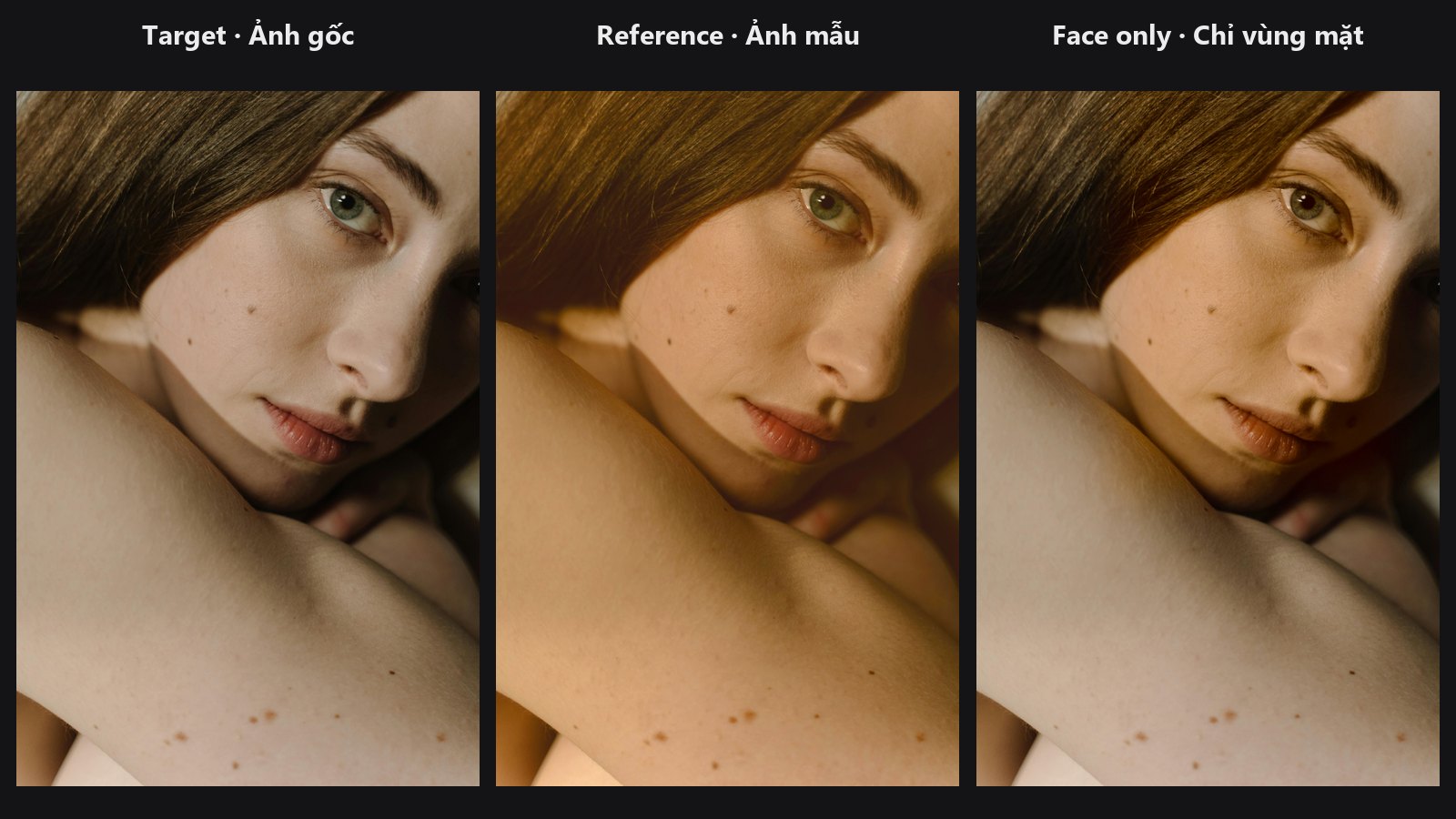
Color Matcher compares the whole of two same-size pictures. Often that is not what you want: a face swap has skin next to a blue wall, and the reference may be a different crop entirely. Color Matcher Region lets you draw a mask on each side. The colour "character" (average and spread) is measured only inside the reference mask, and used to recolour only the area inside the target mask. Because only statistics are compared, the two pictures do not need the same size or framing.
Quick start
- Connect your edit to
image_targetand the picture with the colours you want toimage_reference. - Make a mask over the area to fix (for example with Skin Tone Tri-Region) and connect it to
target_mask. - Make a mask over the matching area of the reference and connect it to
reference_mask. - Keep
channelsonab, setstrengtharound 0.8, and previewimage_matched.
Settings
| Setting | Default | What it does | Tip |
|---|---|---|---|
image_target |
required | The picture to recolour. | |
image_reference |
required | The picture that provides the colours. Can be a different size. | |
channels |
ab |
ab matches colour only and keeps the target's brightness. lab matches brightness as well. |
ab for skin and products. |
strength |
1.0 (0 to 1) | 0 leaves the image untouched, 1 applies the full match. | 0.6 to 0.9 for natural results. |
target_mask (optional) |
whole image | Area of the target that is measured and recoloured. Soft edges give soft transitions. Must match the target's size. | Feather hard selections first. |
reference_mask (optional) |
whole image | Area of the reference that is measured. Must match the reference's size. | Pick a clean, evenly lit patch. |
method (optional) |
stats |
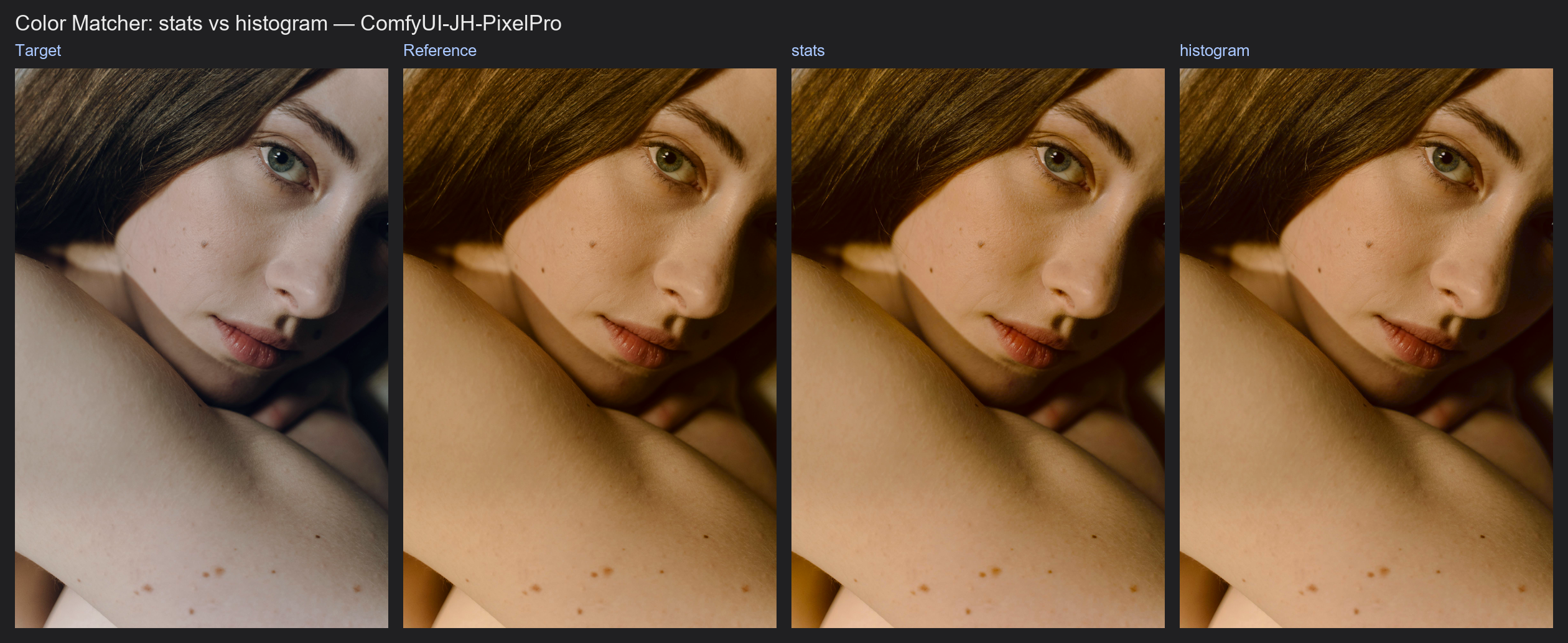
stats matches the average and spread of each channel (smooth, safe). histogram matches the whole distribution of each channel, so shadows, mid-tones and highlights each land where the reference has them. |
Try histogram when stats gets close but not quite there. |
Output: image_matched, the recoloured image. Outside target_mask the picture is unchanged.
Stats or histogram?
stats(default) shifts and stretches each channel so its average and spread equal the reference's. It is gentle and predictable, and the right choice for most skin and white-balance fixes.histogramreshapes each channel so its whole distribution (the histogram) follows the reference's. It fixes cases where two pictures share an average but feel different, for example a flat render against a contrasty photo. It is stronger, so lowerstrengthand watch for exaggerated noise or banding in smooth areas.
Old workflows keep working: when method is absent, stats is used.
Tips from retouching
- For faces, use
ab: lighting and skin texture stay intact, only the colour shifts. - Keep the reference patch free of shadows, glasses, lipstick or hair; one clean cheek is better than the whole face.
- Soften hard masks before use. Mask Edge Smoother or Sub-Pixel Mask Refiner avoid a visible seam at the border.
- To match the whole frame between same-size pictures, the simpler Color Matcher is enough.
Under the hood
Both images go to CIE LAB (Kornia). Mean and standard deviation of the selected channels are computed with mask weights inside each mask, then the target is shifted and scaled to the reference's statistics (Reinhard transfer). The result is converted back to RGB, blended by strength, and finally composited with lerp(target, matched, target_mask). Each mask must have the same height and width as its own image and contain at least one positive pixel; a single mask or reference is broadcast over a batch. Masks and images outside 0..1 are clamped with a logged warning.
With method = histogram, each selected channel of the target and of the reference is binned into a 4096-bin histogram (weighted by the mask when there is one). Every target pixel is mapped to its quantile in the target CDF, then to the value at the same quantile in the reference CDF (linear interpolation inside bins). The blend by strength and the output path are the same as stats. It runs on the GPU in a few milliseconds at 2K and stays well under 1 GB.
Related nodes
- Color Matcher: whole-frame version
- Skin Tone Tri-Region: ready-made skin regions for masks
- Saturation Mask: select areas by colour strength
- Mask Edge Smoother: soften mask borders
Example workflow
Color Matcher stats vs histogram example workflow matches a cool shot to a warm reference with both methods side by side (shown with Color Matcher; the Region node has the same method switch). It uses only core ComfyUI nodes and this pack. Copy workflows/sample_portrait.jpg into ComfyUI/input/.