Layer Flatten
Merges all layers of a stack into a single image, like Layer → Flatten Image in Photoshop. Use it as the last step of a compositing chain.
| In ComfyUI | Add Node → ComfyUI-JH-PixelPro → compositing → Compositing: Layer Flatten |
| Good for | Getting a normal image out of a layer stack so you can preview, save or keep editing |
When to use it
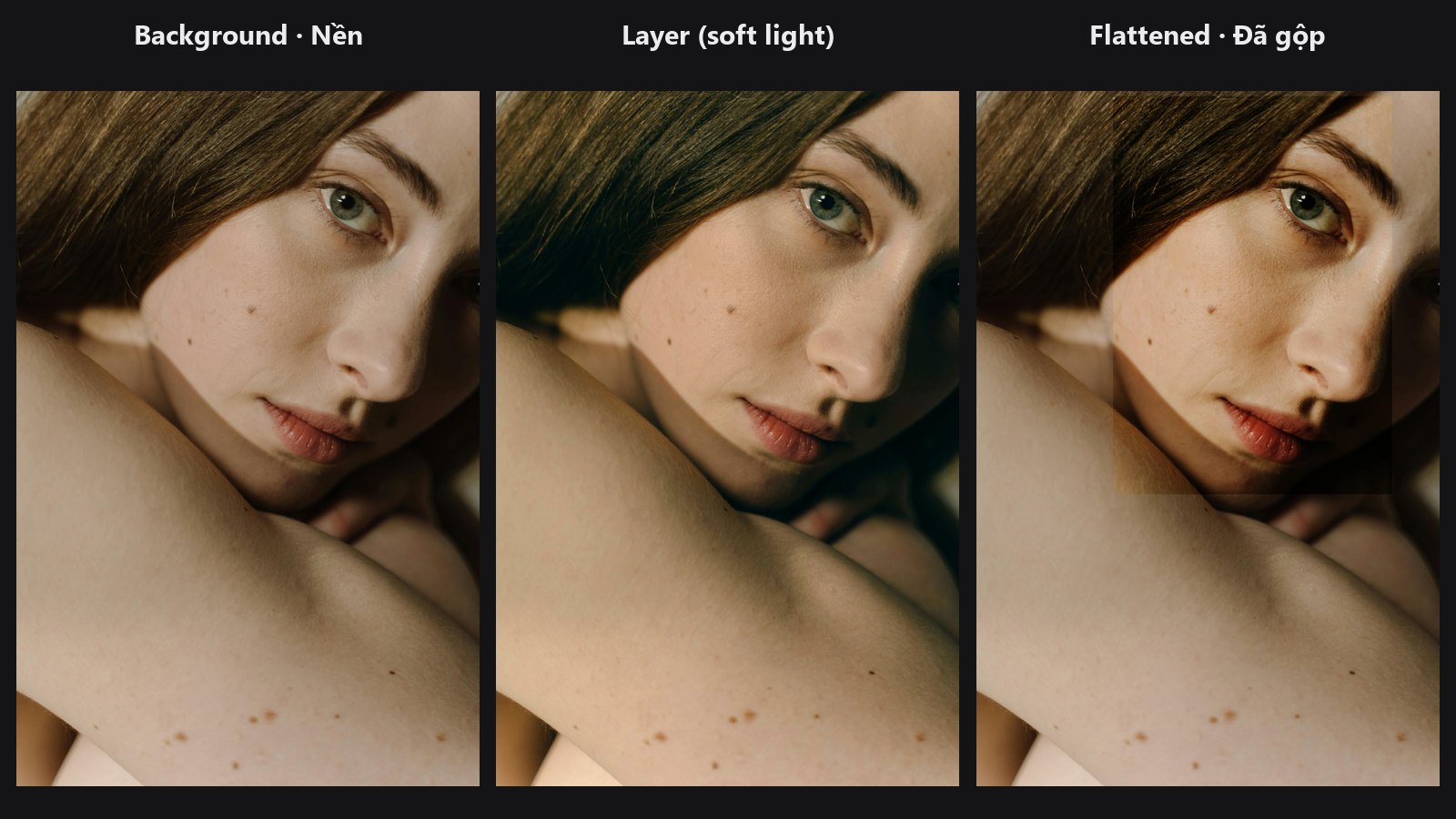
A layer stack is not an image yet. Until you flatten it, you cannot preview or save it. Layer Flatten renders the stack from the bottom layer up: each layer is mixed in using its blend mode, opacity, fill, mask and clipping.
Quick start
- Build a stack with Layer Stack Start and Layer Add.
- Connect the last
LAYER_STACKto Layer Flatten →Preview ImageorSave Image.
Settings
| Setting | Default | What it does | Tip |
|---|---|---|---|
stack |
— | The layer stack to render. | Connect the last node of your chain. |
| Output | Type | Meaning |
|---|---|---|
IMAGE |
IMAGE |
The merged picture, values clamped to 0..1. |
Tips from retouching
- Flatten once, at the end. A flattened image no longer lets you adjust the individual layers.
- You can flatten the same stack at two points (for example before and after one layer) to make a before/after comparison.
- Run QA Image Diff on the original and the flattened image to see how much the composite changed.
Under the hood
Runs compose_stack from core/blend_modes.py. An empty stack raises an error. Source: nodes/layer_compositing.py.
Related nodes
Example workflow
Layer compositing: 5-layer cinematic grade. Copy workflows/sample_portrait.jpg into ComfyUI/input/.