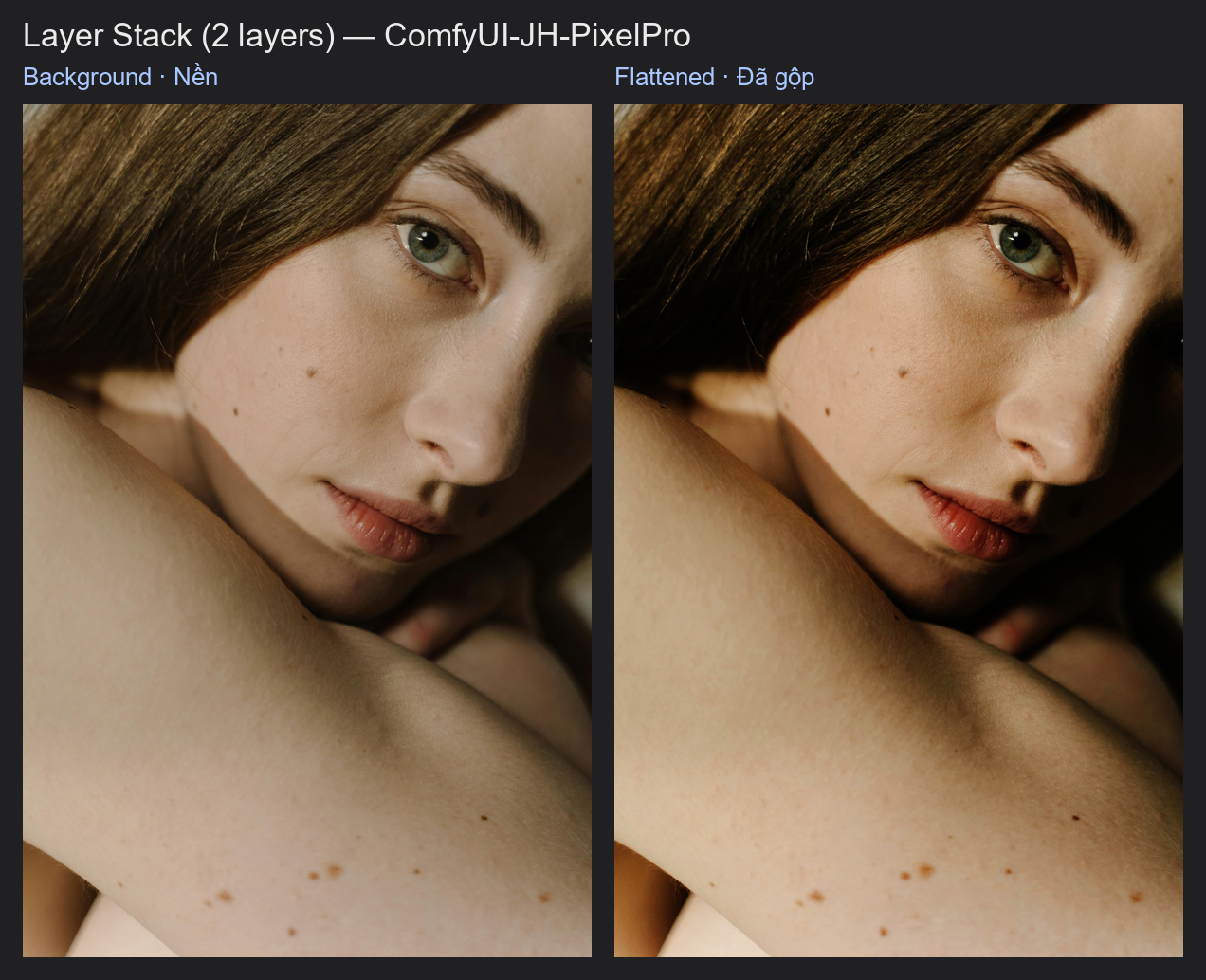
Layer Stack Start
Turns an ordinary image into the bottom layer of a layer stack, just like the Background layer in Photoshop. Every other compositing node builds on top of it.
| In ComfyUI | Add Node → ComfyUI-JH-PixelPro → compositing → Compositing: Layer Stack Start |
| Good for | Starting any finishing composite: grading layers, light effects, texture overlays, nested groups |
When to use it
ComfyUI normally passes finished images between nodes. A layer stack is different: it keeps every layer separate (image, blend mode, opacity, mask) until you decide to merge them. That lets you rebuild the same stack as often as you like and change one layer without redoing the rest.
The stack travels on a special LAYER_STACK connection. Layer Stack Start creates it from your background image. You then add layers with Layer Add, optionally nest stacks with Layer Group, and turn the result back into a normal image with Layer Flatten.
Quick start
Load Image→ Layer Stack Start (background).- Connect its
LAYER_STACKoutput to Layer Add. - End the chain with Layer Flatten →
Preview Image.
Settings
| Setting | Default | What it does | Tip |
|---|---|---|---|
background |
— | The image that becomes the bottom layer. | Its size is the canvas size for the whole stack. |
| Output | Type | Meaning |
|---|---|---|
LAYER_STACK |
LAYER_STACK |
A stack that contains only the background layer. |
Tips from retouching
- Feed in your final, full-size retouch as the background, so every layer you add is resized to match it.
- Use a second Layer Stack Start when you want to build a group (for example a set of grading layers) separately, then nest it with Layer Group.
- A
LAYER_STACKcannot go intoPreview ImageorSave Imagedirectly. Always finish with Layer Flatten.
Under the hood
The stack is a plain list of layer dictionaries. The background is stored as the first entry with blend mode normal, opacity 1, fill 1, no mask and no clipping. See nodes/layer_compositing.py for the wrapper and compose_stack in core/blend_modes.py for how a stack is rendered.
Related nodes
Example workflow
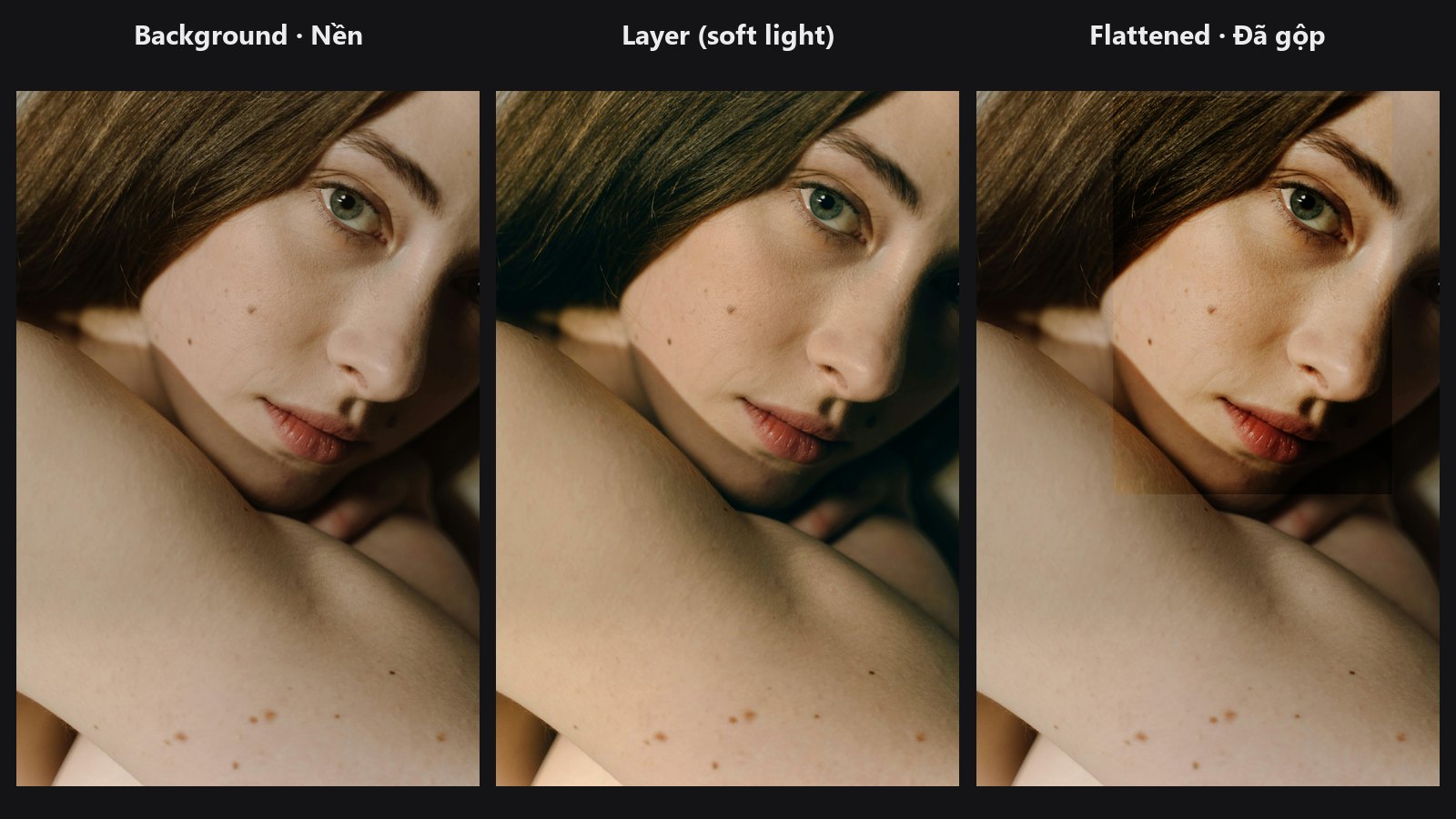
Layer compositing: 2-layer overlay. The portrait is the background and a cinematic teal-orange copy goes on top with soft_light at 80% opacity, then Layer Flatten renders it. Copy workflows/sample_portrait.jpg into ComfyUI/input/. It uses only core ComfyUI nodes and this pack.