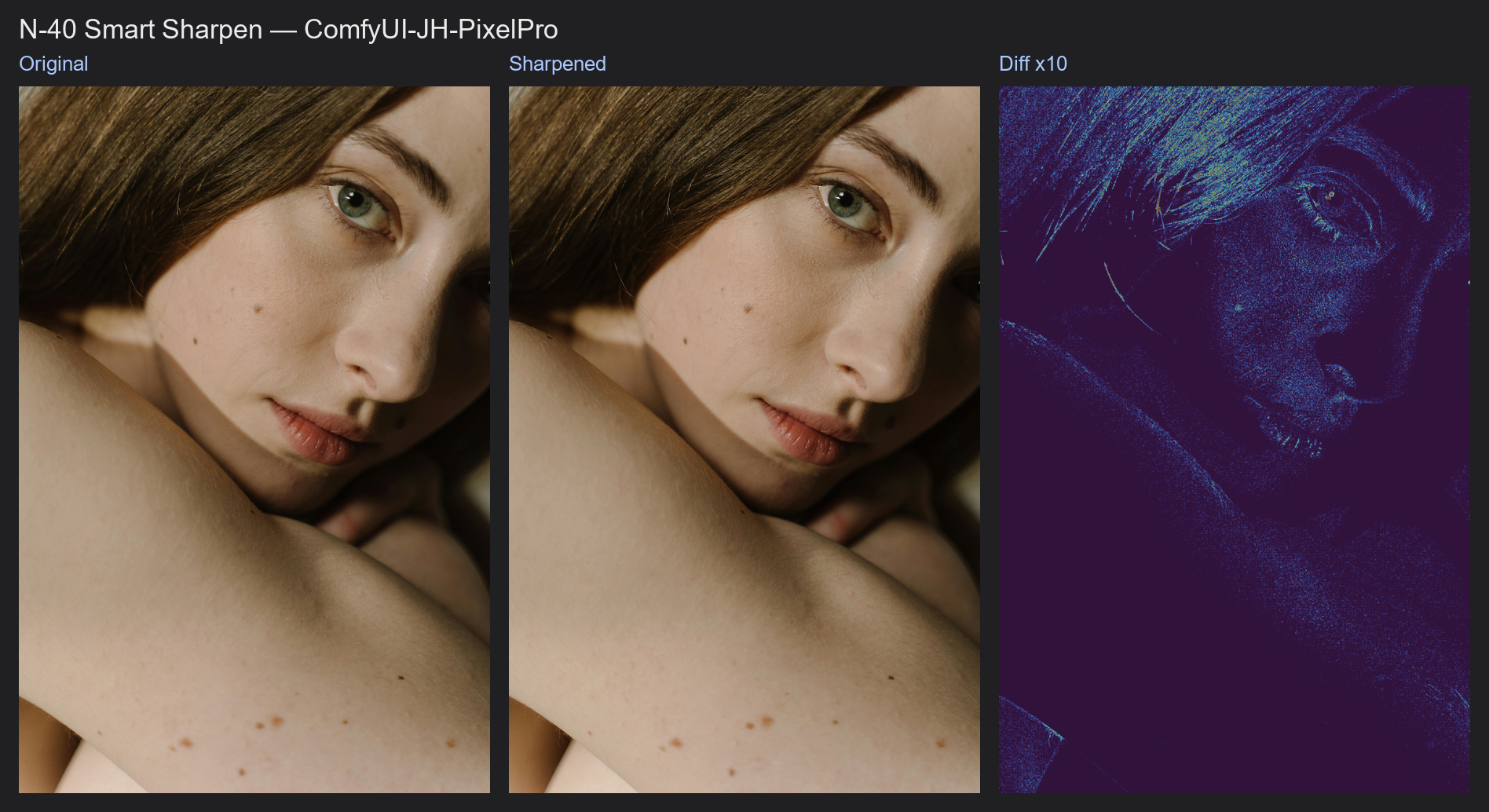
Smart Sharpen
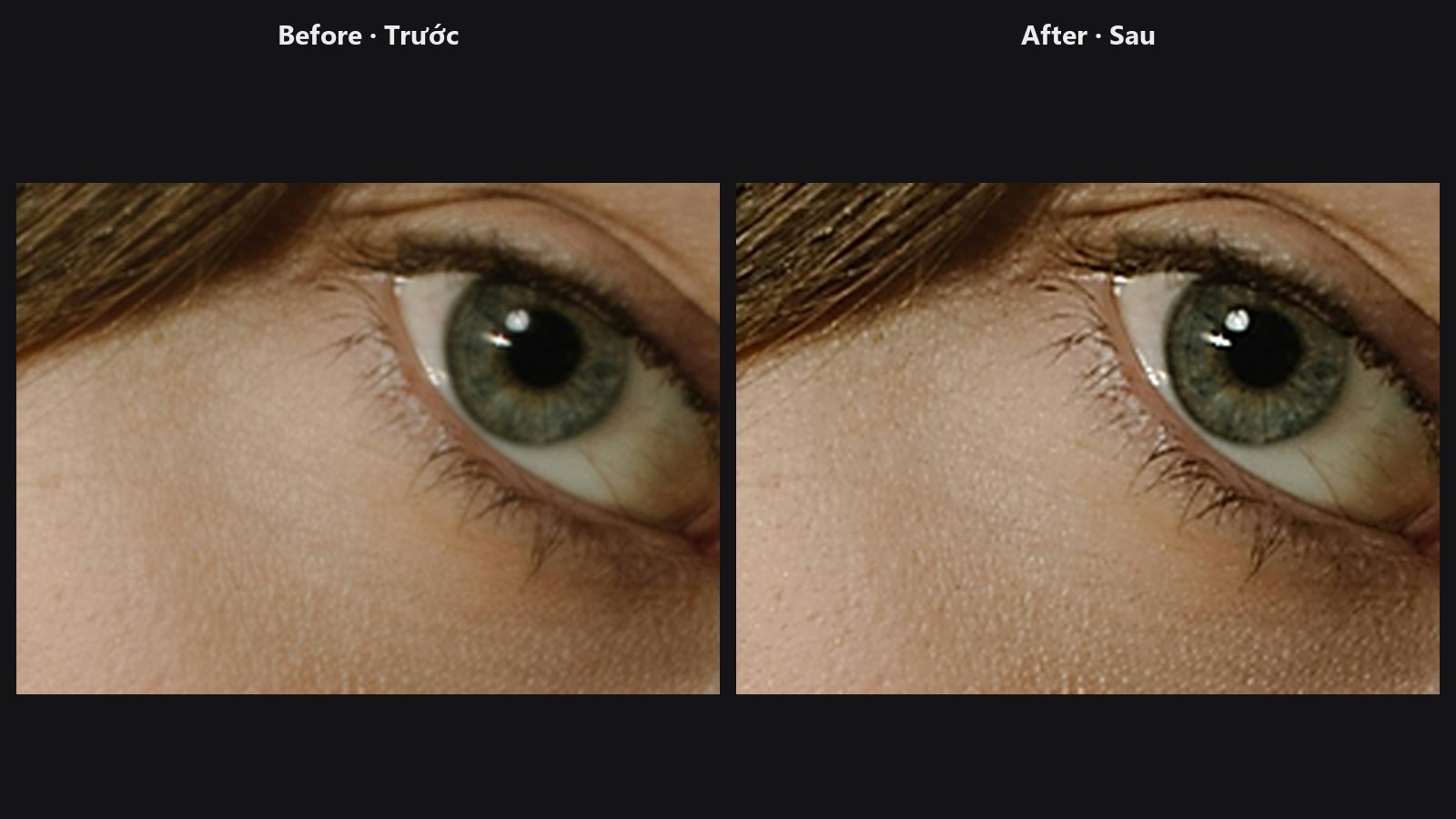
Makes edges and texture crisper with an unsharp mask. A threshold keeps noise and grain from being boosted, it sharpens brightness only by default so colours do not fringe, and an optional mask lets you sharpen only the areas you choose.
| In ComfyUI | Add Node → ComfyUI-JH-PixelPro → filters → Filters: Smart Sharpen |
| Good for | Final output sharpening, bringing back eyes and hair detail, sharpening textured areas while leaving skin and sky smooth |
When to use it
Unsharp mask is the same idea as Photoshop's Unsharp Mask: blur a copy, subtract it from the original to find the detail, and add that detail back with extra strength.
Use this node as one of the last steps, after smoothing, colour work and any resize.
Quick start
Load Image→ Filters: Smart Sharpen →Preview Image.- Start with
amount = 1.0,radius = 1.0,threshold = 0. - For grainy images, raise
thresholdto about 0.02 to 0.05. - To sharpen only detail areas, connect a mask from Detail Mask to
mask.
Settings
| Setting | Default | What it does | Tip |
|---|---|---|---|
amount |
1.0 (0 to 5) |
Strength. 0 returns the image unchanged. | 0.5 to 1 is usually enough. Above 2 expect halos. |
radius |
1.0 (0.3 to 10) |
Size of the detail that gets boosted, in pixels (blur sigma). | 0.5 to 1 for fine detail and web size, 1.5 to 3 for large prints. Above 5 acts like local contrast. |
threshold |
0.0 (0 to 0.5) |
Detail weaker than this is left alone. | Raise it to avoid boosting noise or film grain. |
luminance_only |
on | Sharpen brightness only, leave colour as it is. | Keep on to avoid coloured edges. |
mask (optional) |
none | Where sharpening applies: white = full, black = none. | Batch of 1 is reused for all images. |
Output: image, the sharpened picture (IMAGE).
Tips from retouching
- Sharpen after Skin Smoother, never before, or you will sharpen the blemishes you are about to smooth.
- A mask of eyes, lashes, hair and fabric gives crisp detail without making skin look rough.
- The image must be larger than
ceil(3 × radius)pixels on both sides, or the node reports an error. - Use QA Image Diff to check that sharpening only changed what you intended.
Under the hood
detail = x − gaussian_blur(x, sigma = radius) with reflect borders and a kernel of 2 × ceil(3 × radius) + 1. The detail is soft-thresholded, sign(d) × max(|d| − threshold, 0), which is a smooth ramp so no speckle appears at the cut-off. Then out = x + amount × detail × mask, clamped to 0..1. In luminance mode the detail comes from BT.601 luma and is added equally to R, G and B, which changes brightness only. Source: core/sharpen.py and nodes/sharpen_node.py.
Related nodes
Example workflow
Smart Sharpen example workflow. Copy workflows/sample_portrait.jpg into ComfyUI/input/.