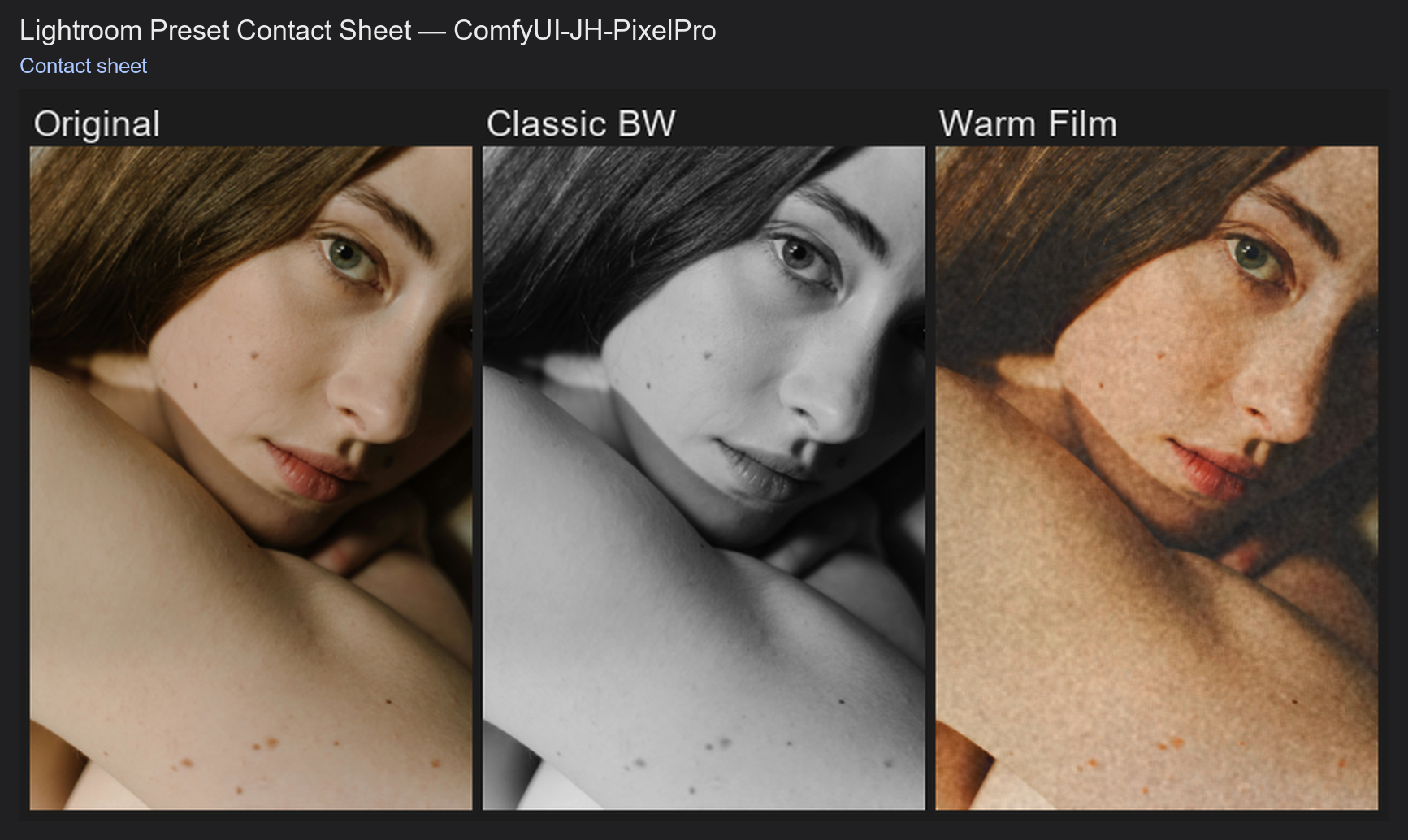
Lightroom Preset Contact Sheet
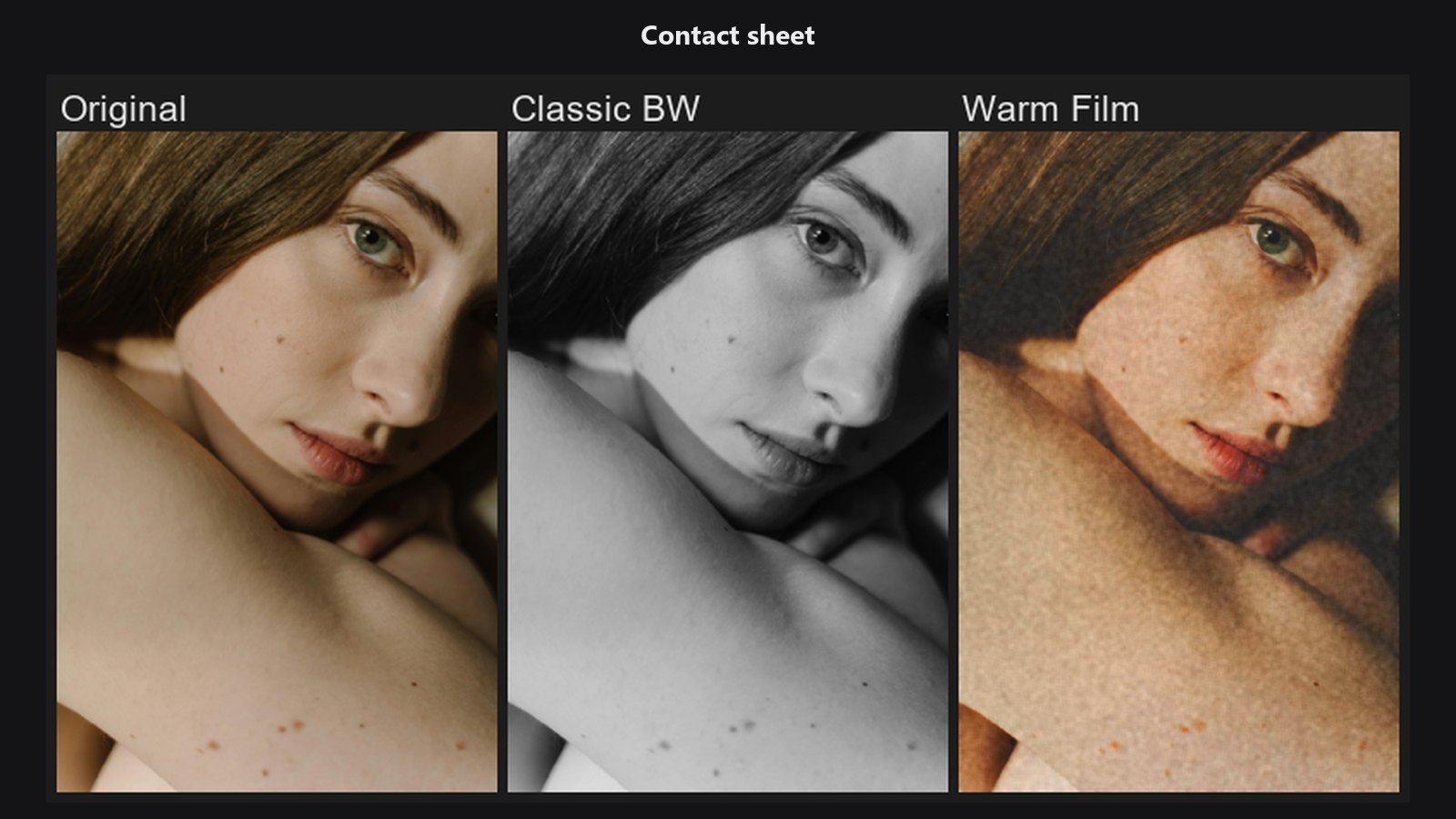
Lays out your photo with a whole collection of Lightroom presets applied, like a contact sheet: the original first, then one labelled tile per preset. A fast way to shortlist a look before you commit to one.
| In ComfyUI | Add Node → ComfyUI-JH-PixelPro → color → Color: Lightroom Preset Contact Sheet |
| Good for | Choosing a preset for a specific photo, reviewing a new preset pack, showing a client several looks at once, checking your favourites on a new shoot |
| Speed | 10 presets at 320 px in about 0.14 s on the GPU (after warm-up) |
When to use it
Thumbnails in the Lightroom Preset browser are small. When you want to judge looks properly on your own image, this node renders the same presets at a size you choose and puts them in one image you can preview, save or send.
It uses the same preset folder, collections, favourites and recents as the Lightroom Preset node, and the same translation to ColorLab, so a tile here looks like the full node at strength 1.0.
Quick start
- Load Image → Color: Lightroom Preset Contact Sheet → Preview Image on
sheet. - Pick a
collection, for example a sub-folder of your presets or ★ Favorites. - Run. Note the name of the look you like (the
presetsoutput lists them in order). - Select that preset in a Lightroom Preset node to apply it at full size.
Settings
| Setting | Default | What it does | Tip |
|---|---|---|---|
image |
— | The photo to preview the presets on. Only the first frame of a batch is used. | |
collection |
All | Which presets to show: All, ★ Favorites, Recent, or one sub-folder of your preset folder. | Favourites and recents are the ones you set in the Lightroom Preset browser. |
columns |
4 | Tiles per row (1 to 12). | 4 to 6 suits a wide screen. |
thumb_size |
320 | Long edge of each tile in pixels (128 to 768). The photo is only scaled down, never up. | 320 for a quick overview, 512 or more to judge skin tones. |
max_presets |
24 | Most presets to put on the sheet (1 to 200). | Combine with search rather than rendering a huge sheet. |
search (optional) |
empty | Only presets whose name contains every word you type. | e.g. film warm. |
tone_engine (optional) |
local |
local uses edge-aware tone tools, closer to Lightroom; legacy uses ColorLab's simpler tone maths. |
Use the same engine as your Lightroom Preset node so the tiles match. |
Outputs
| Output | What it is |
|---|---|
sheet |
One image with a labelled grid on a dark background: "Original" first, then each preset. A preset that is only partly supported has [!] after its name. |
presets |
The names of the presets on the sheet, one per line, in the same order as the tiles. |
Tips from retouching
- Star your best presets in the Lightroom Preset browser, then set
collectionto ★ Favorites to test them all on each new shoot. - A
[!]tile is missing part of the original look (often a creative profile). Check that preset's report in the Lightroom Preset node before choosing it. - Use a photo with skin, neutrals and some saturated colour; presets that look similar on a landscape can differ a lot on skin.
- Presets that cannot be read are left out of the sheet, so the
presetslist is the reliable record of what you see.
Under the hood
The first frame is downscaled once with area averaging so its long edge is at most thumb_size. Each preset is read and translated to ColorLab settings (parsed presets are cached by file and modification time), then applied with exposure in linear light, exactly as in the Lightroom Preset node at full strength. The local tone engine runs on the GPU when one is available. The tiles are assembled with Pillow: 6 px gaps, a label strip above each tile, names cut at 48 characters. Source: core/lr_preset_library.py.
Related nodes
- Lightroom Preset to apply the chosen preset at full size
- ColorLab to fine-tune a look further
- Apply ColorLab Preset to reuse a saved ColorLab look
- LUT Preset for looks stored as .cube LUTs
Example workflow
Lightroom Preset Contact Sheet example workflow shows the portrait with the presets in the preset folder side by side. It uses only core ComfyUI nodes and this pack. Copy workflows/sample_portrait.jpg into ComfyUI/input/.