Frequency Recombine
Rebuilds a picture from the two layers made by Frequency Separation. Edit colour on low, texture on high, then put them back. One slider lets you push pores and fine detail up or down at the same time.
| In ComfyUI | Add Node → ComfyUI-JH-PixelPro → filters → Frequency Recombine (low + high) |
| Good for | Finishing a frequency-separation retouch, boosting or softening skin texture without touching colour |
When to use it
Frequency Separation splits a photo into a smooth low layer (colour and light) and a signed high layer (texture). The high layer holds negative values, so ordinary blend or add nodes cannot join the two again: they clamp the negative half away. Frequency Recombine adds them correctly and only clamps the final picture to the 0 to 1 range.
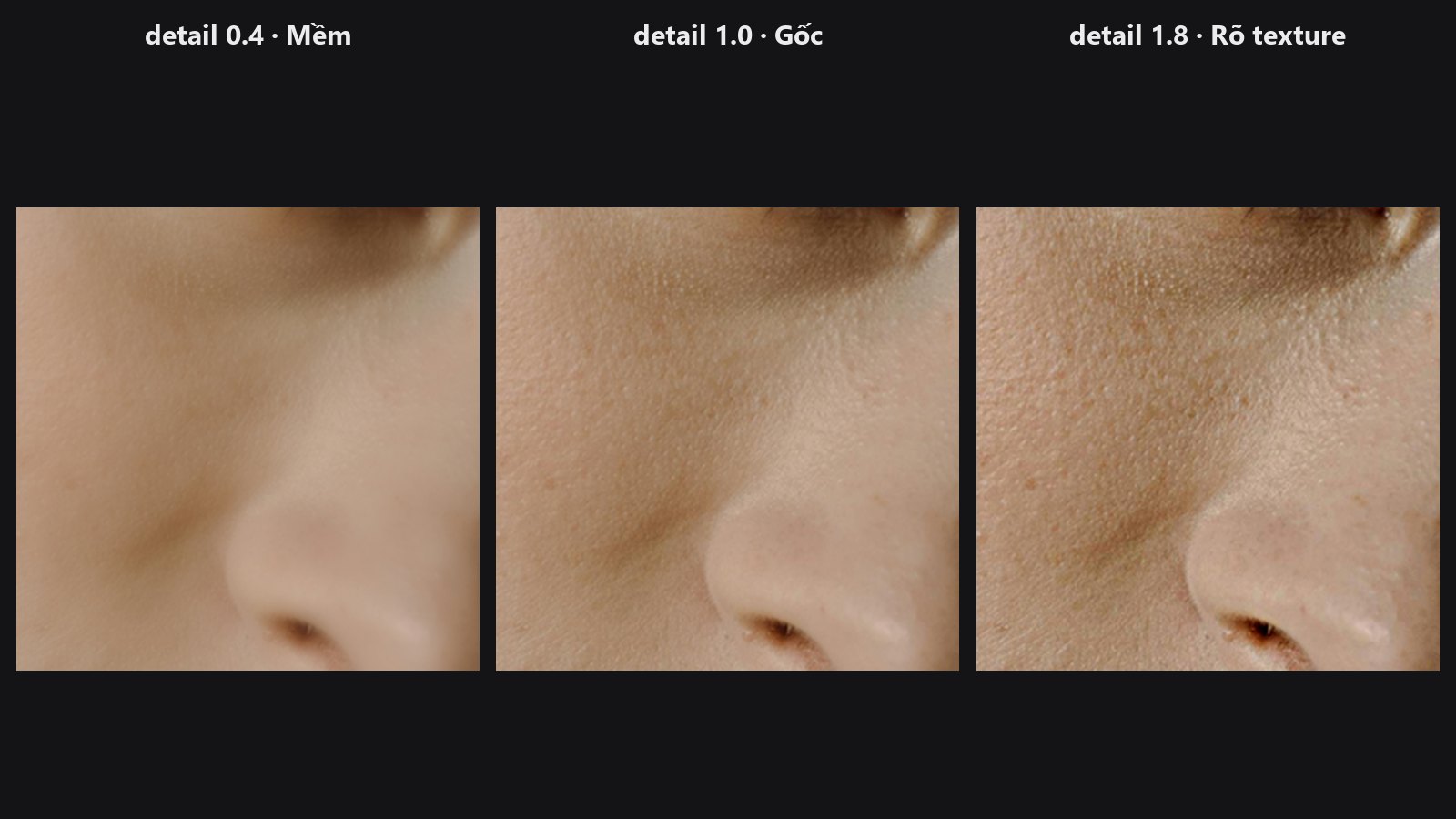
The detail setting scales the texture layer before it is added back:
1.0returns the original exactly if you did not edit either layer.- Above
1.0boosts texture: pores, hair and fabric get stronger. - Below
1.0softens texture.0.0gives you thelowlayer alone.
Quick start
Load Image→ Frequency Separation.- Connect
lowandhighto the same-named inputs of Frequency Recombine. - Leave
detail = 1.0and preview: you should see your original photo. - Edit
low(for example with Skin Smoother), then trydetail = 1.2to1.6for more texture.
Settings
| Setting | Default | What it does | Tip |
|---|---|---|---|
low |
— | The colour-and-tone layer, edited or not. | From Frequency Separation. |
high |
— | The texture layer. Signed values. | Connect it directly. Do not pass it through a node that clamps. |
detail |
1.0 (0 to 3, step 0.05) |
How much texture to add back. | 0.8 to 1.0 for softer skin, 1.2 to 1.6 for stronger texture. |
| Output | Type | Meaning |
|---|---|---|
image |
IMAGE |
low + detail × high, clamped to 0..1. |
Tips from retouching
- Check the round trip first: with no edits and
detail = 1.0the result should match the original. - Smooth
lowand keepdetailat or slightly above 1 to hide blotches but keep pores. - Keep
radiusin Frequency Separation the same for the whole job. The two layers only match if they come from the same split. - A large
detailon a noisy photo also boosts the noise. Try smaller steps. - Both layers must have the same width and height.
Under the hood
The result is low + detail × high in float32, clamped once at the end. Both inputs must be RGB with the same height and width. Batch sizes must match, or one side must be 1 (it broadcasts). detail outside 0..3 raises an error. Source: frequency_recombine in core/frequency.py and the wrapper in nodes/frequency_node.py.
Related nodes
Example workflow
Frequency Separation example workflow splits the portrait and rebuilds it with Frequency Recombine at detail 1.6. It uses only core ComfyUI nodes and this pack. Copy workflows/sample_portrait.jpg into ComfyUI/input/.